How-To
Add a Yard
-
Go to Storage and click Add New Yard.

-
Give it a name and (optionally) a land location.

-
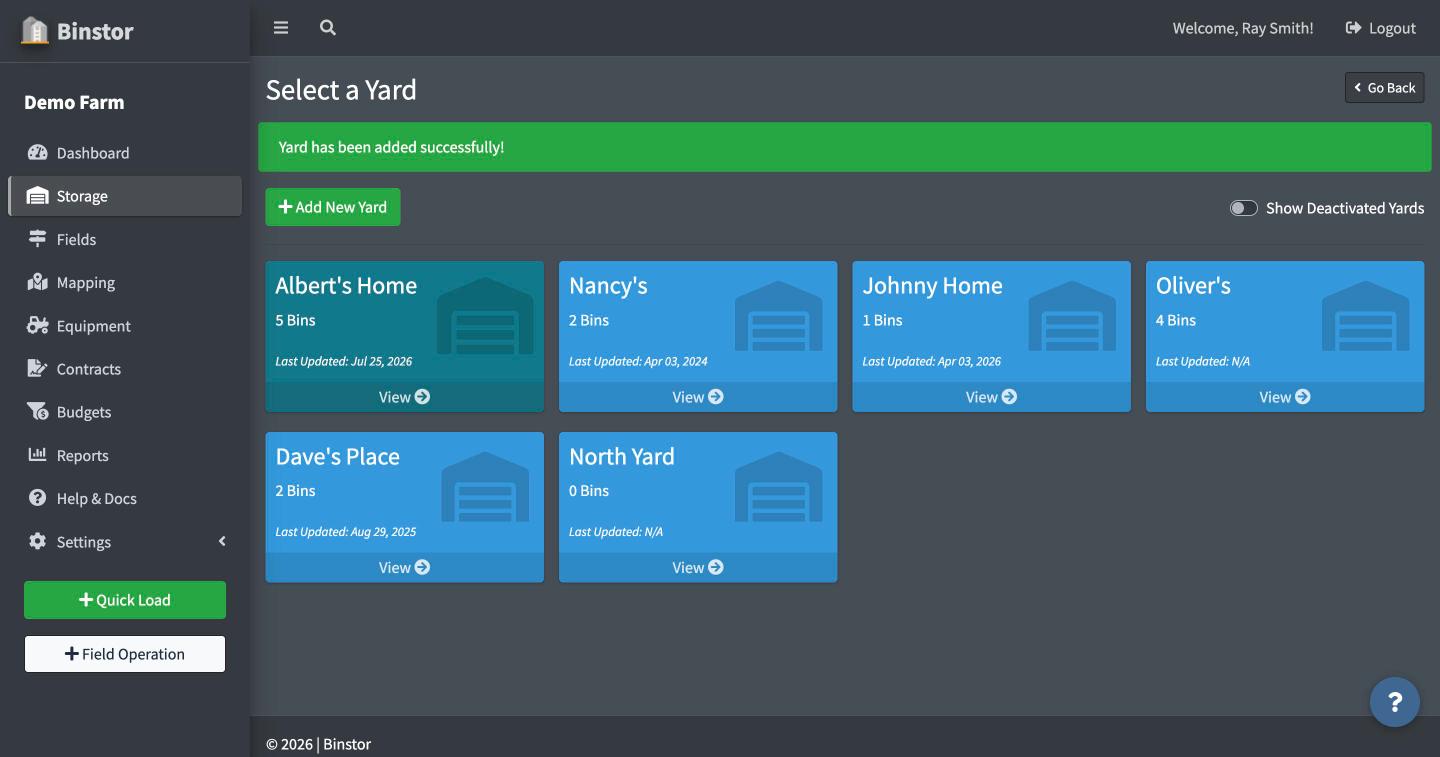
Save. You'll land back on the Yard list with a confirmation, and the new Yard's card now shows in your list.
Deactivating a Yard
Rather than deleting, Yards can be deactivated: they're hidden from the default list but their history is preserved. Toggle Show Deactivated Yards on the Storage page (top right) to see them again, or to reactivate one.
A deactivated Yard's Bins, and any grain still in them, are left out of your Dashboard and Yard totals and your reports, and they can't take new loads or notes. If any of its Bins still hold grain when you save, you'll be asked to confirm, so empty them first.

FAQ
Why can't I see "Add New Yard"?
You need the Manage Yards/Bins permission. Staff accounts with only view access can see Yards but not add or edit them.
Can a staff member be restricted to only certain Yards?
Yes, a farm owner can limit a staff account to specific Yards under their Staff permissions. Bins inherit whatever Yard access the staff member has.