How-To
Si is Binstor's built-in assistant. Ask it questions about your farm in plain language ("How much canola is in Bin 4?", "What's due on the calendar this week?") or ask it to make changes for you ("Add a task to service the combine on Friday"). Si can work with Storage, Fields, Contracts, Equipment, Budgets, Tasks, Commodities, and bin temperatures, limited to what your own permissions allow.
Chat with Si
-
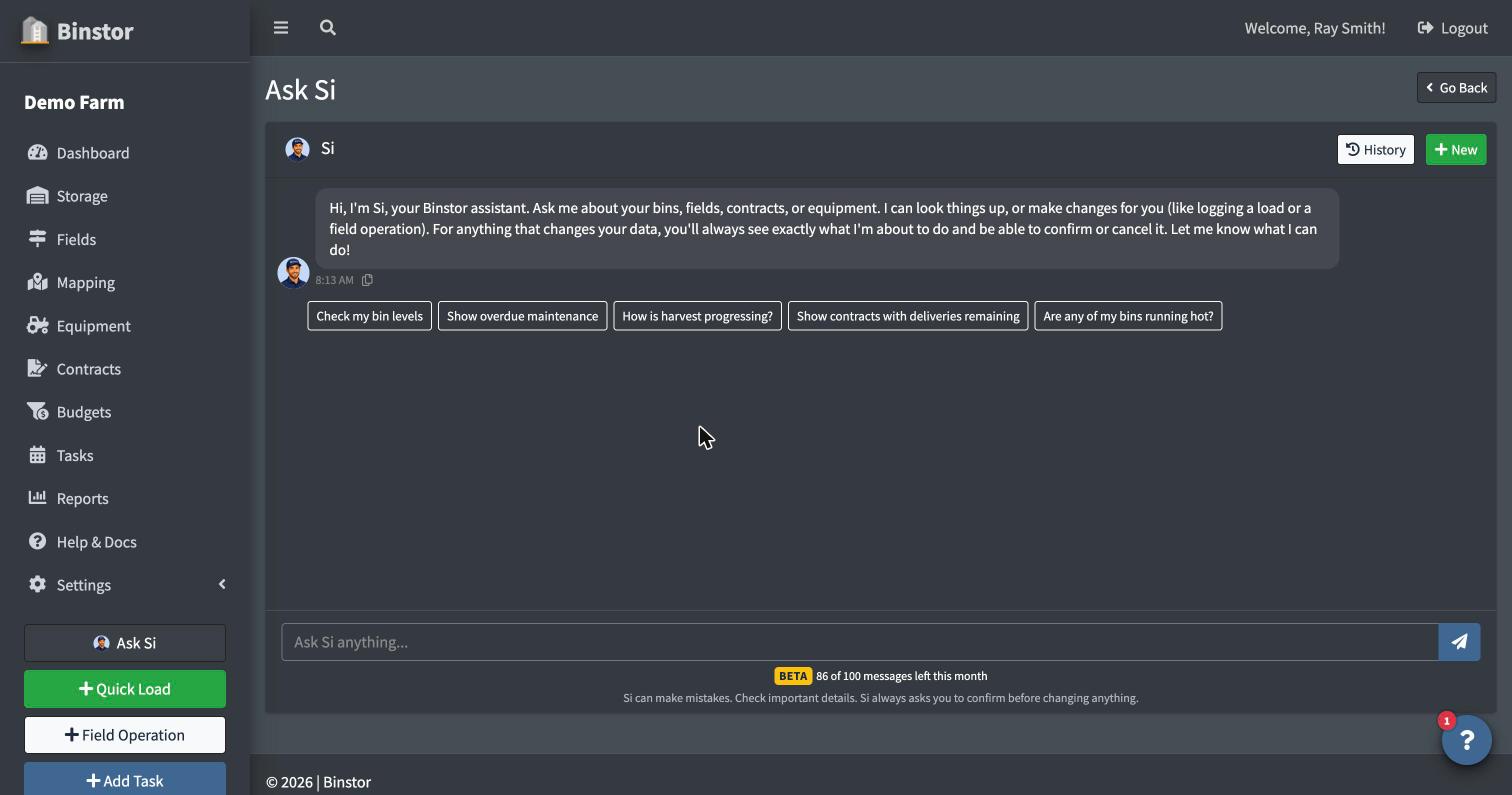
Click Ask Si in the menu for the full-page chat, or open the Si tab in the notification panel for a quick question from any page. Type your message and press Enter. For a longer message, press Shift+Enter to start a new line; the message box grows up to 4 lines. Some suggestion buttons appear on a new chat to get you started.
-
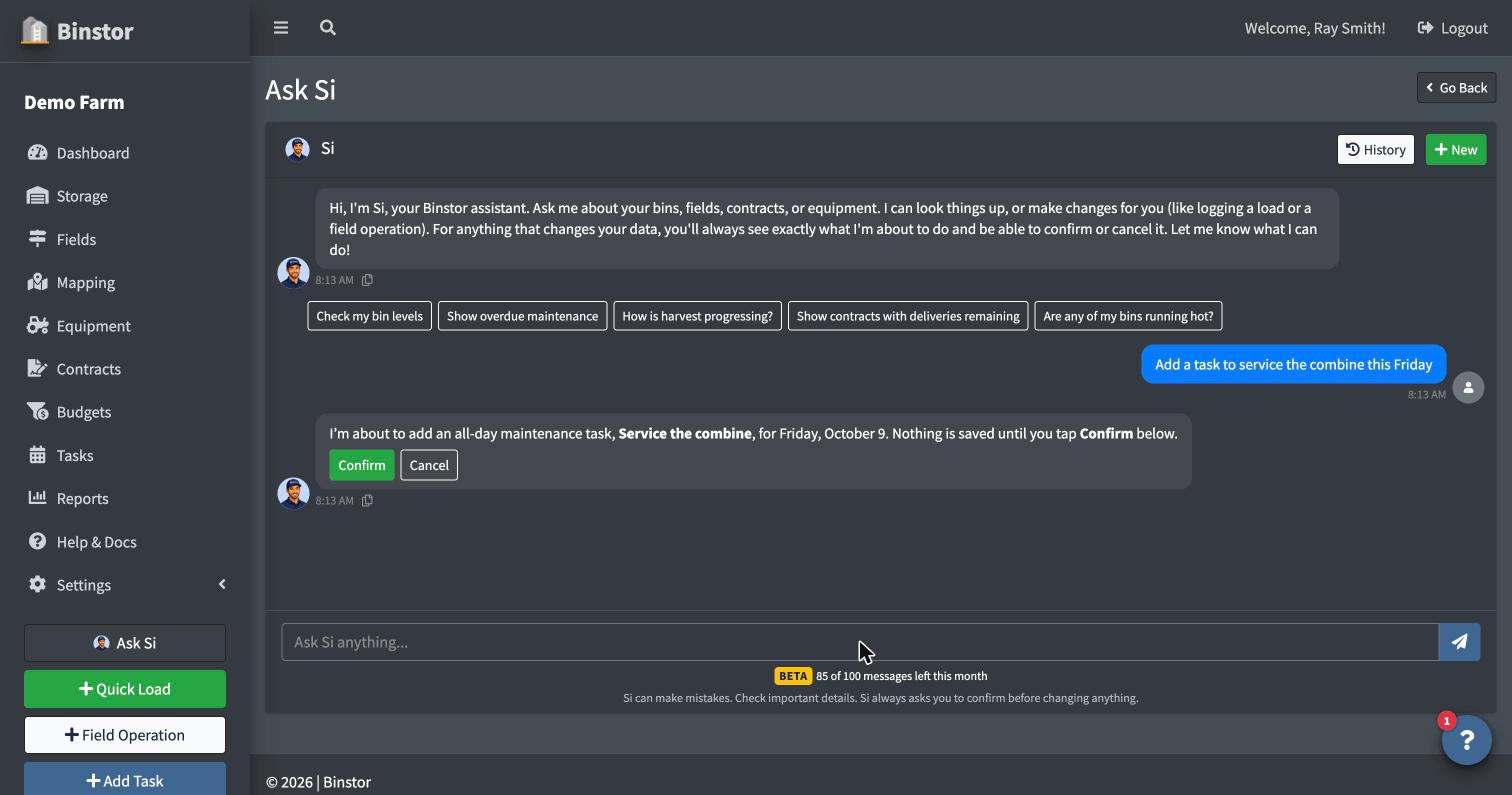
Before anything changes, Si shows you exactly what it is about to do. Si never changes your data on its own. Nothing happens until you click Confirm, and you can click Cancel instead. Si works within the same permissions as your login, so it can't do anything you couldn't do yourself in the app.
-
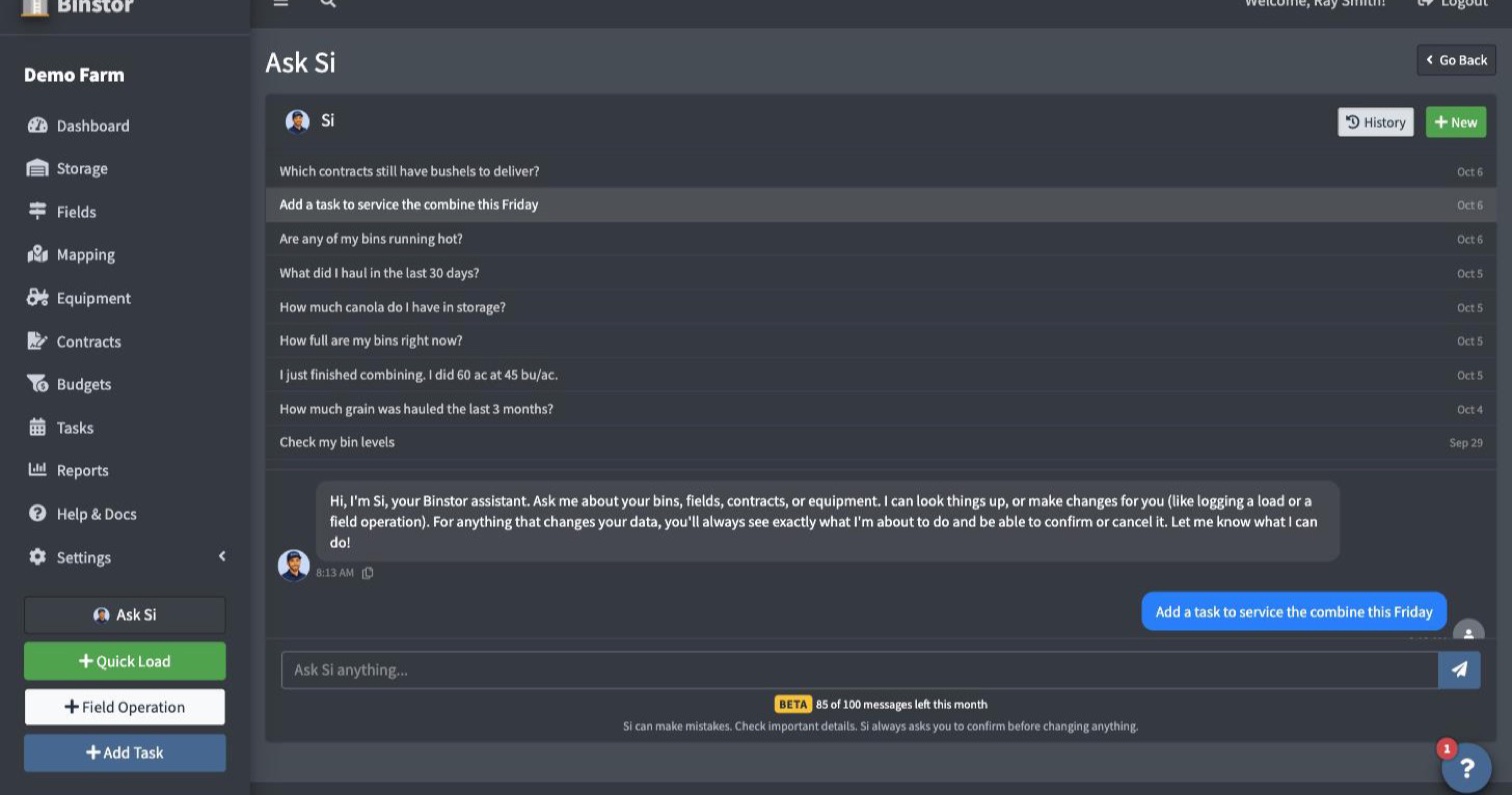
Click + New to start a fresh chat, or History (the clock icon) at the top of the chat to reopen an earlier chat and continue it. Chats are listed by when you last sent a message in them, so just opening one doesn't move it up the list.
-
Under the message box, Si shows how many messages your farm has left, for example "8 of 10 free messages left". Every message you type uses one, whether it's a question or a request. Clicking Confirm or Cancel doesn't use any. The count is shared by everyone on your farm, owner and staff.
-
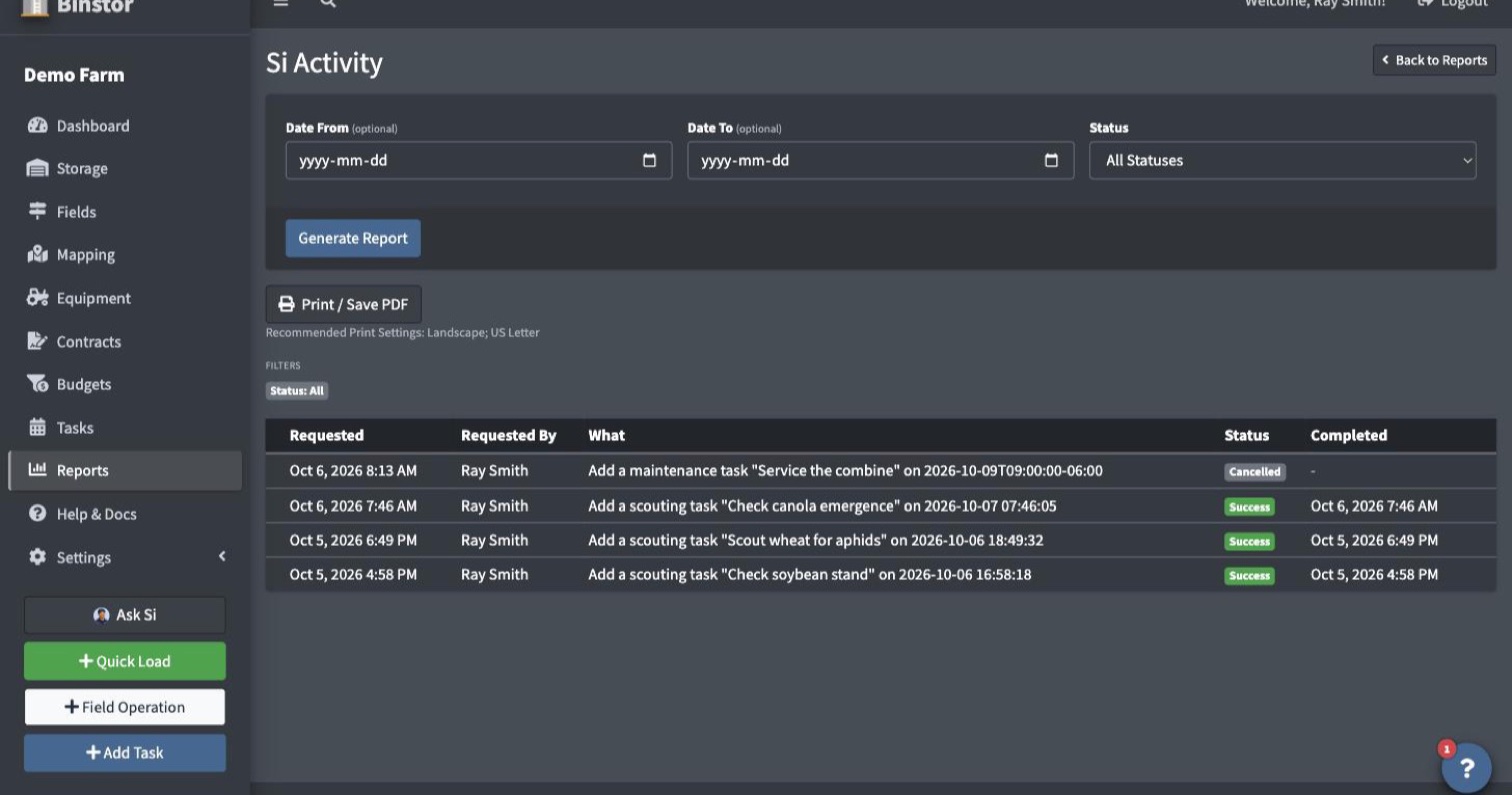
Owners and staff with Manage Staff permission can review every change made through Si under Reports > Si Activity: who asked, what it did, when, and whether it went through.
-
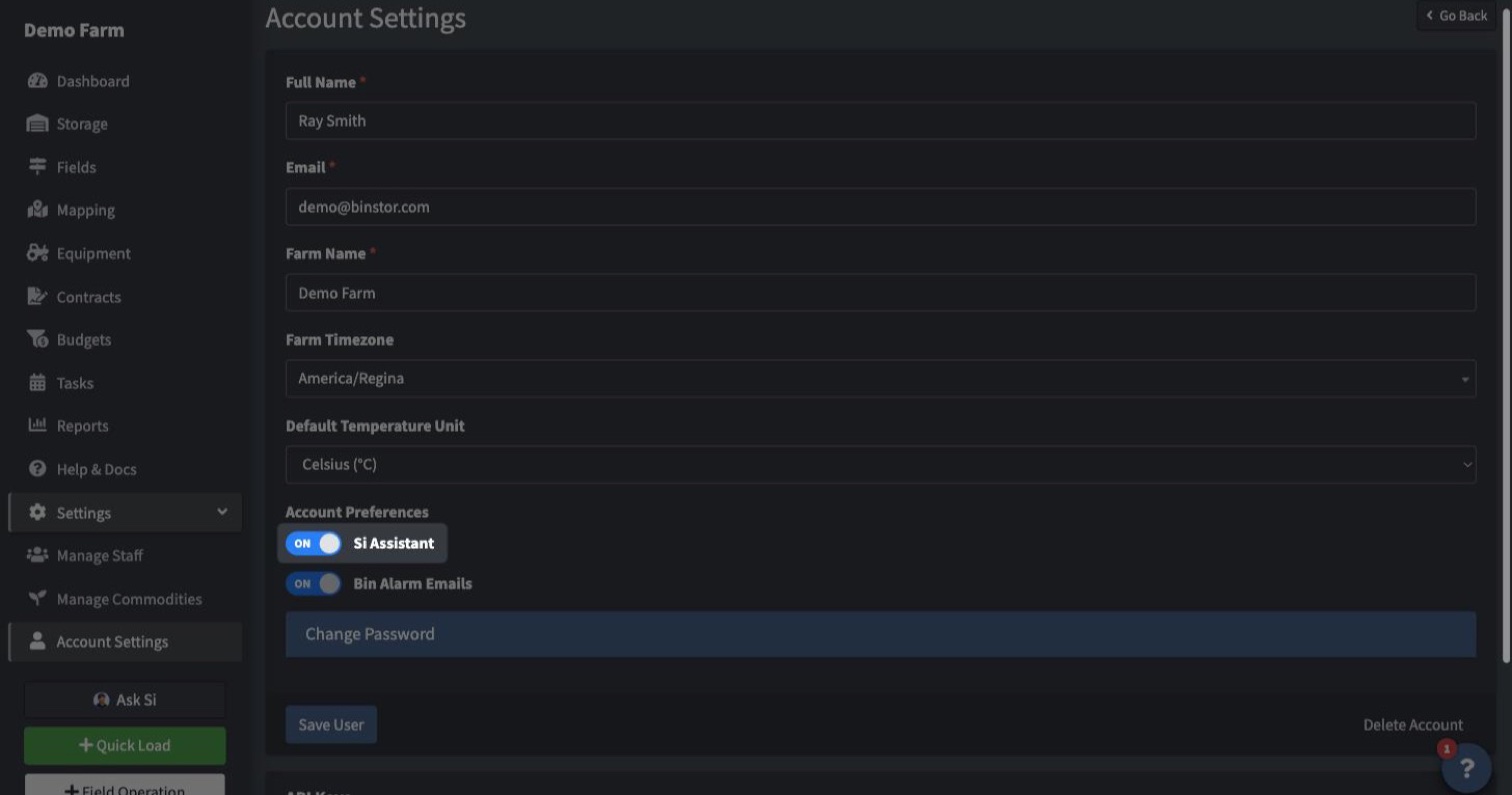
Farm owners can turn Si off for the whole farm, staff included, under Account Settings with the Si Assistant switch. When it's off, the Ask Si menu item and Si tab disappear for everyone on your farm and nothing is sent to it.
Tips for better answers
- Use the names you already use in Binstor ("North 80", "Bin 4"). Small differences like an apostrophe or capital letter don't matter, so "Johns" finds "John's". If you add extra words or a land location after a name, like "North Jared (SE-00)", Si still finds "North Jared" and checks with you that it's the right one.
- Contracts, crop plans, budgets and fixed costs belong to a crop year. If you don't say a year, Si uses this year and tells you which year the numbers are for. If a year could mean two things, like "canola delivered in 2026" (the 2026 contracts, or everything delivered during 2026), Si asks which one you mean.
- Be specific about the details Si needs: how many bushels, which bin, which date. If something is missing or could mean two things, Si asks you.
- For changes, read the summary Si shows before you click Confirm.
- Ask for several at once. "Add yards called North, South and East" or "Add 10 fields" is set up under a single Confirm.
- Ask Si to do the math. "How much canola have I produced compared to what I've contracted?", "What's my average canola contract price?" and "Which fields came up short in the bins?" all work. If some acres haven't been harvested yet, Si asks what yield to assume. A number you give it for a what-if ("let's say 42 bu/ac") is only used in that answer and is never saved to your fields.
- Give amounts in the unit you think in. "5,000 MT at $800/MT" works: Binstor converts it using the commodity's bushel weight, so set that under Commodities first.
- Si can fix mistakes too: change or delete the last load on a bin or the last field operation, edit notes, and rename or resize yards, bins and fields. The same rules as the app apply, for example only the most recent load on a bin can be deleted, and a change can't leave a bin below zero.
- Si only knows your farm and Binstor. It will politely pass on questions about anything else.
FAQ
How many messages do I get?
Every farm starts with a free allowance of Si messages, shown under the message box. When it runs out, Si tells you and the box is turned off. To get more, contact support at info@binstor.com.
How does Si work out how much I've produced?
Production is a field's seeded acres times the yield recorded in its Crop History for that year, per variety. Harvest operations you log fill in that yield, or you can enter it in Crop History yourself. During harvest, a field that is only partly harvested still counts at its full seeded acres, so Si tells you which fields that applies to because the total can show high. Acres with no yield yet aren't counted until you give Si a yield to assume.
Can Si make mistakes?
Yes. Si's answers are generated automatically, so double-check anything important. That's why it always asks you to confirm before changing anything.
Does Si have access to my data all the time?
No. Si only looks up your farm data when someone sends it a message, and only what's needed to answer that message, within that person's permissions. If Si is turned off, nothing is sent.
How do I tell you when Si gets something wrong?
Click the thumbs-down under any reply and, if you like, add a short note on what went wrong. The thumbs-up tells us what worked. Both help us improve Si.
Why don't I see Ask Si?
Your farm owner may have turned it off in Account Settings, or it may not be available on your account yet.
Can staff turn Si off just for themselves?
No. It's a farm-wide setting controlled by the owner.
I clicked Cancel. Did anything change?
No. Cancel throws the request away and the request stays in the chat marked Cancelled. Nothing is saved until you click Confirm.
What do I see after I click Confirm?
The request stays in the chat and is marked "Done" with a summary of what was saved. If Si couldn't make the change, the request says "Not completed. See why below.", and a message under it explains what happened. Nothing is saved in that case. If the change failed in a way that may work on another try, the Confirm and Cancel buttons stay so you can click Confirm again.
Si couldn't do something I asked.
Si can only do what your permissions allow, and it doesn't cover every feature in the app yet. If it says it can't, use the app directly.