How-To
Add a Staff Member
-
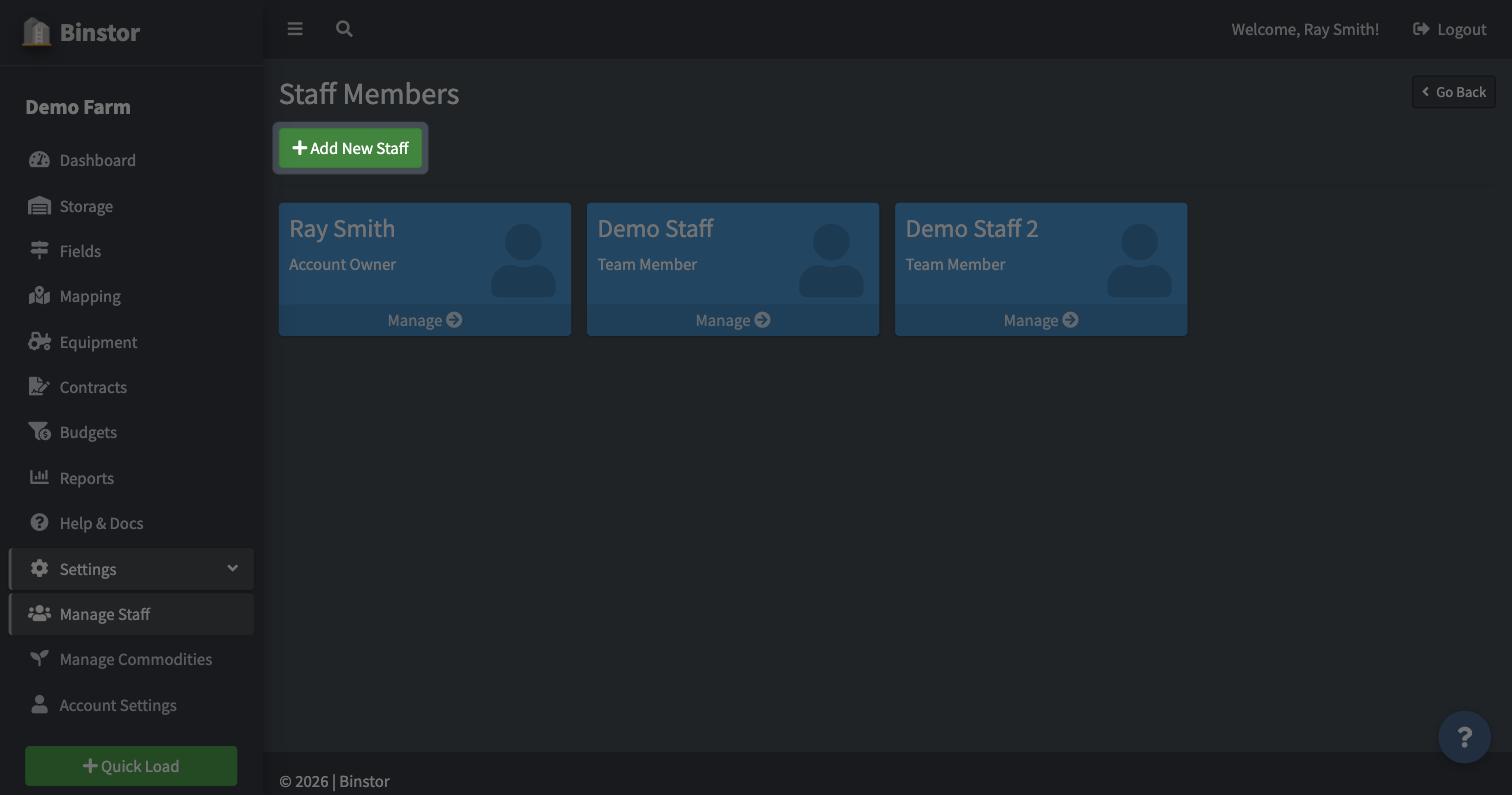
Go to Settings > Manage Staff and click Add New Staff.
-
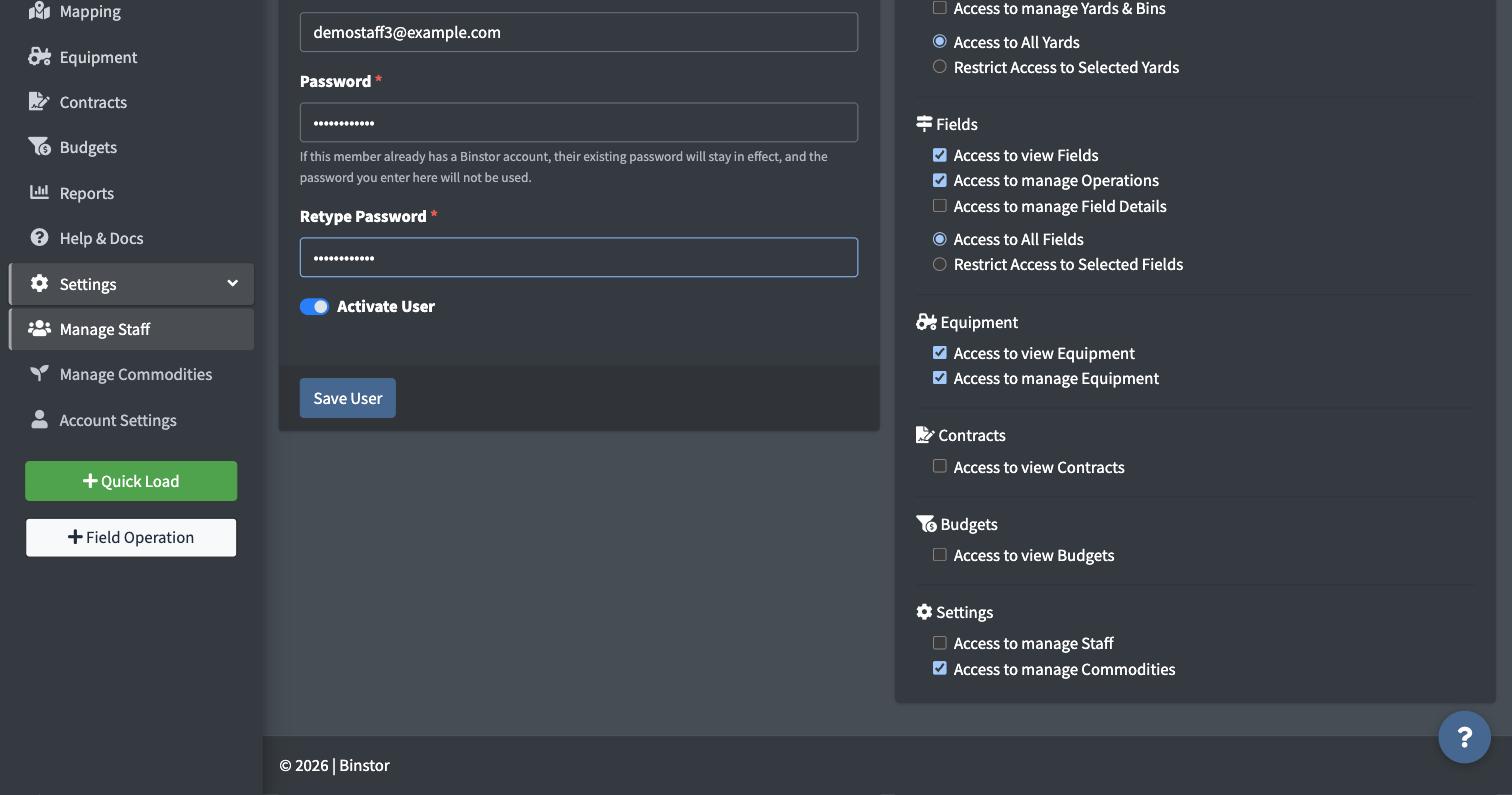
Enter their Full Name, Email, and a password.
-
Set their permissions (see the full list below) and make sure Activate User is checked.

The full permissions panel covers every feature area:
-
Click Save User.

There's no invitation email; you're setting their login directly, so you'll need to share their email/password with them yourself.
If that email already has a Binstor account (e.g. they already work on another farm), Binstor connects them to your farm using their existing login instead of creating a new one. The password you typed in is ignored in that case, and they'll keep logging in with what they already use. If they were previously removed from your farm, adding them again reactivates that same membership rather than creating a duplicate.
Permissions are grouped by feature area: each has a "view" permission plus more specific "manage" permissions underneath it:
| Area | Permissions |
|---|---|
| Storage | View Storage, Manage Loads, Manage Yards & Bins, optionally restrict to specific Yards |
| Fields | View Fields, Manage Operations, Manage Field Details, optionally restrict to specific Fields |
| Equipment | View Equipment, Manage Equipment, optionally restrict to specific Equipment |
| Contracts | View Contracts, Deliver Loads, Manage Contracts |
| Budgets | View Budgets, Manage Crop Plan, Manage Fixed Costs |
| Settings | Manage Staff, Manage Commodities |
A "view" permission controls whether they see that section at all; the "manage" permissions underneath only matter once view access is granted.
Edit or Deactivate a Staff Member From the Staff list, click a row to edit their permissions or role. Uncheck Activate User and save to deactivate them. This doesn't delete them, it just removes their access; you can reactivate the same person later by checking the box again.

If someone's login is shared with another farm, their Name and Email become read-only on your Staff page. You can still change their permissions, but they manage their own login details themselves under Account Settings.
FAQ
Can staff give themselves more access? No. A staff member without the Manage Staff permission can't reach the Staff section at all, so they can't edit their own (or anyone's) permissions.
I added someone who already had a Binstor login. Do I still need to enter a password? The form always requires one, but if that email already has an account, whatever you type is ignored. They'll keep logging in with their existing password, not the one you entered.
How do I remove someone completely? There's no hard delete from the Staff page; uncheck Activate User instead. Their history stays intact and they can be reactivated later if needed.
A staff member says they can't access something I gave them permission for. Double-check whether it's restricted to specific Yards/Fields/Equipment: even with the relevant "view" and "manage" permissions checked, a staff account limited to a subset of items won't see anything outside that list.