How-To
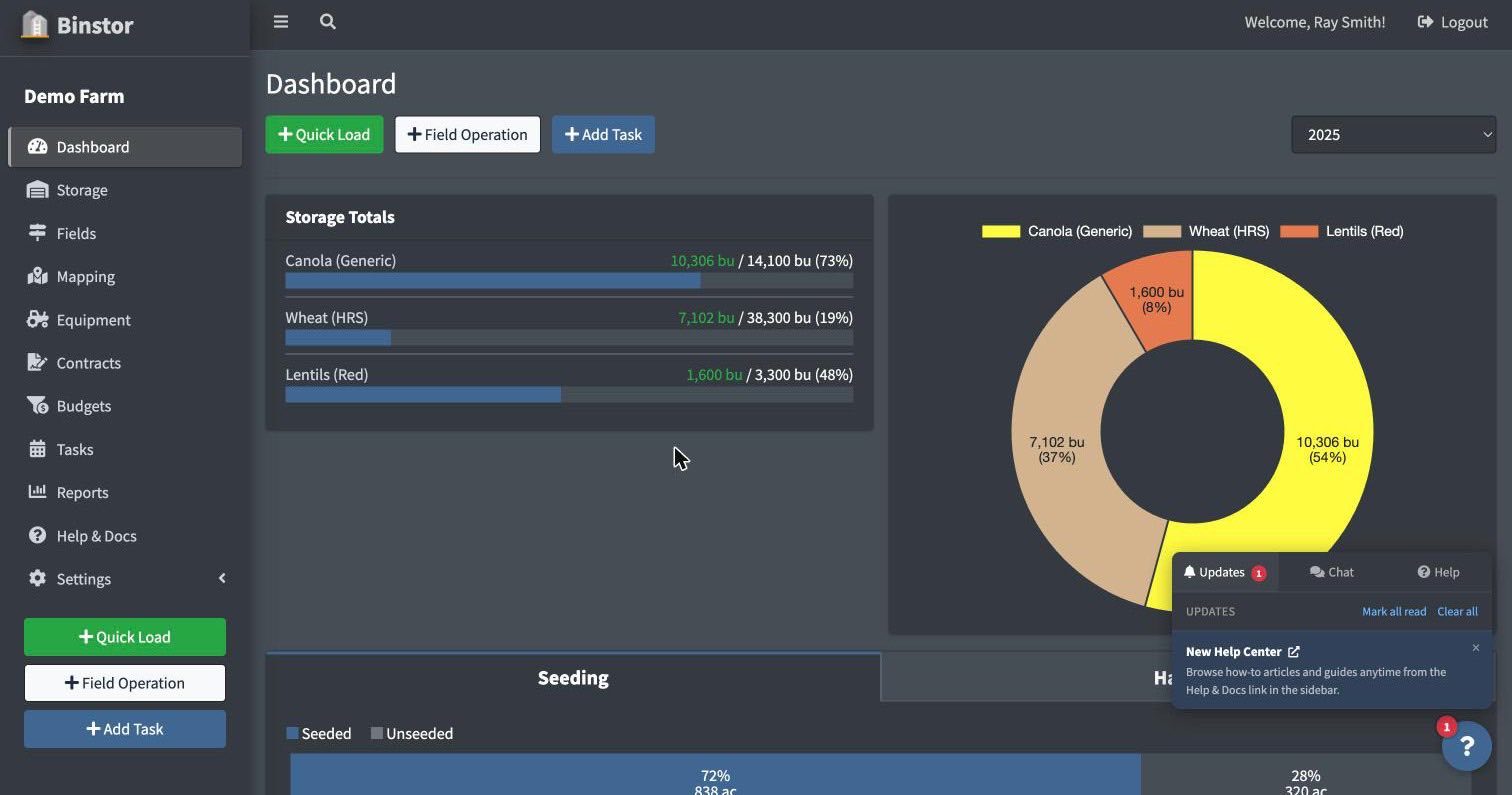
The floating button in the bottom-right corner of every page is your home for updates and support:

-
Updates: announcements, feature updates, and promotions from the Binstor team, plus your own task reminders from the Calendar. A red badge shows how many you haven't read yet; opening the panel and clicking one marks it read. Use Mark all read to clear the badge without opening each one. To clear items out of the list itself, use the × on any single update, or Clear all to empty the whole list. Clearing also marks anything unread as read.
-
Chat: start a live chat with the Binstor team directly.

-
Help: a shortcut straight to this Knowledge Base.
Notifications are tied to your individual login, not your farm. If you're staff, your Updates list and read/click state are your own, separate from the farm owner's and any other staff on the team. Depending on how the Binstor team targeted a given update, you may see updates that a teammate on the same farm doesn't, or vice versa.
FAQ
What's the difference between "Mark all read" and "Clear all"?
Mark all read just resets the red badge; every update stays in the list. Clear all (and the × on a single update) removes items from the list entirely, and cleared updates don't come back. Clearing also counts as reading, so it drops the unread badge too.
Do Calendar task reminders show up here?
Yes. When a task's reminder comes due it lands in the Updates list and adds to the unread badge, the same as a Binstor announcement. Mark it read or clear it once you've seen it.
I don't see a Chat option.
Live chat availability depends on current setup. If it's temporarily unavailable, the Updates and Help tabs still work normally.
Why did a notification I already read show up again?
It shouldn't. If this happens, try refreshing the page. Read status is tied to your individual login, so it should stay marked read across devices whenever you're signed in with that same login.
Does the badge update in real time while I'm working?
It updates on every page load, and once more if you switch back to a Binstor tab/window after being away. It's not a constant live connection, so a brand-new notification won't pop in mid-session on a page you're already sitting on until you navigate or switch back to the tab.