How-To
Add a Task
-
Open Tasks from the sidebar, or click Add Task for a shortcut from anywhere in the app.
-
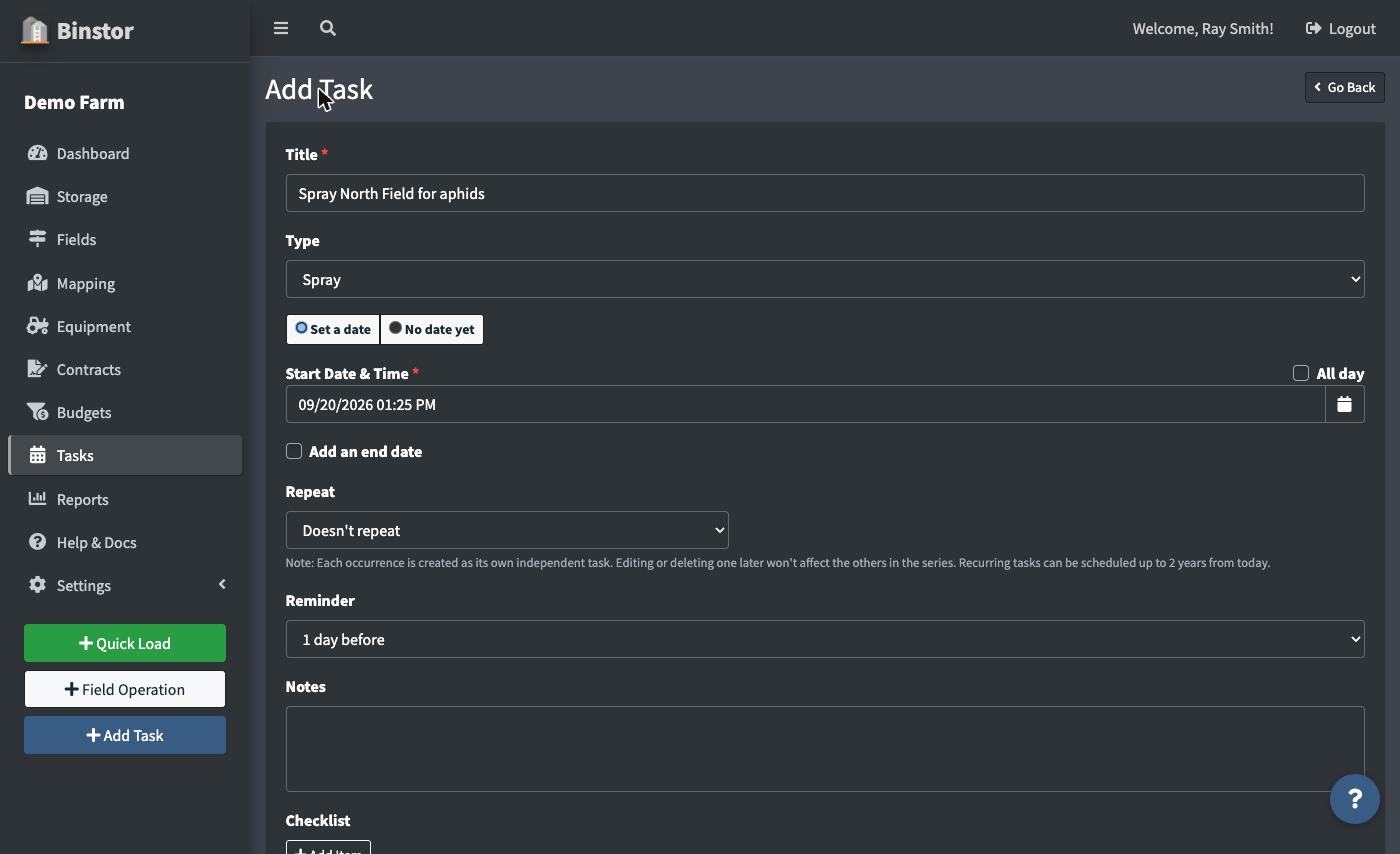
Give the task a title and a type (Spray, Harvest, Delivery, Maintenance, Scouting, or Custom).
-
Choose Set a date or No date yet. Most tasks get a date, but if you don't know when something will happen yet, pick No date yet and it's added to the Hopper instead (see below) so it isn't lost.
-
With a date set, fill in the Start Date & Time. Check All day if it doesn't have a specific time, or Add an end date if it spans a range. Optionally set it to Repeat on a daily, weekly, or monthly schedule until a chosen end date, if this is a recurring task.
-
Optionally set a Reminder (15 minutes, 1 hour, 1 day, or 1 week before the start time). Assignees get notified through the notification bell when it fires.
-
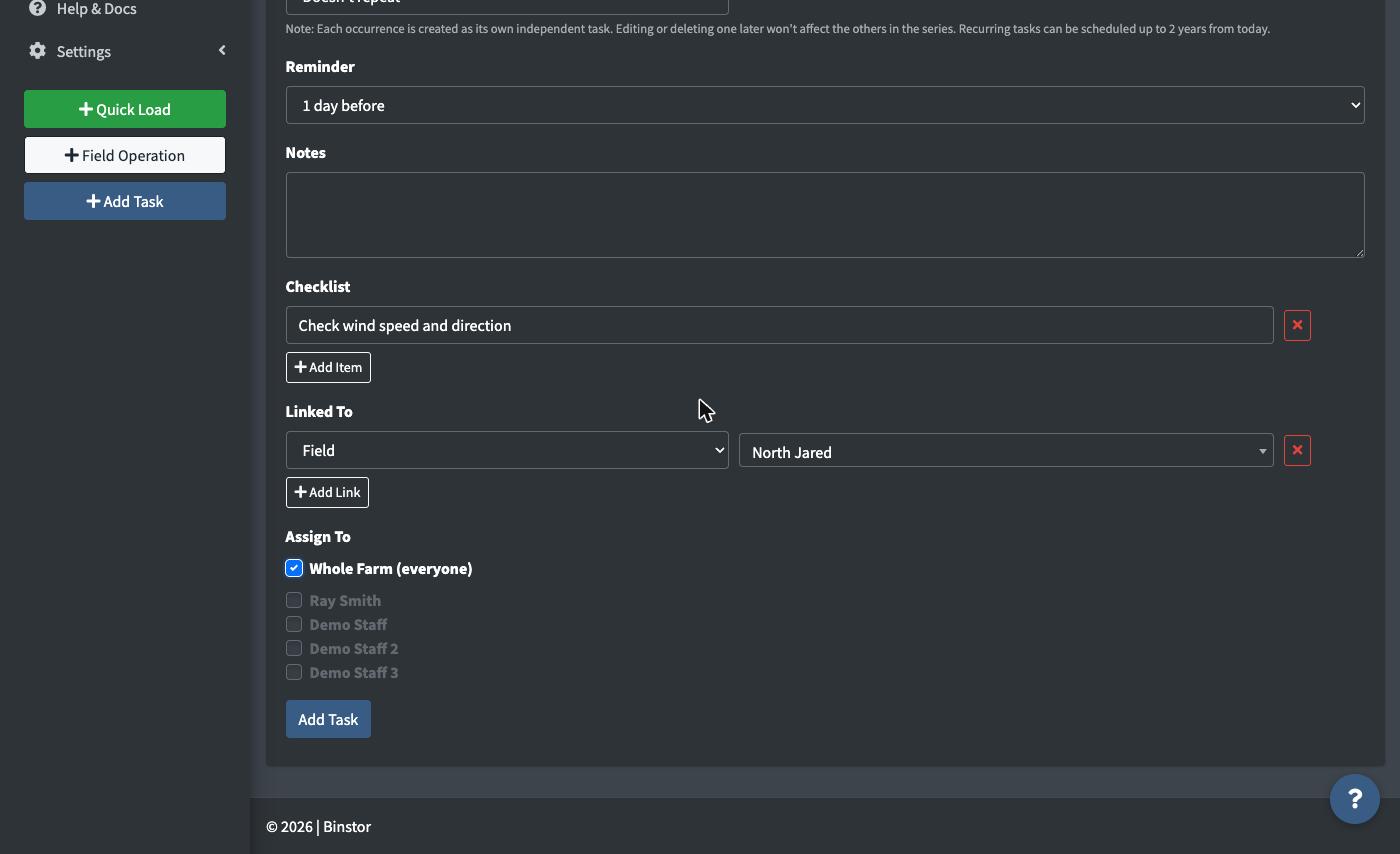
Optionally add a Checklist for multi-step tasks, so each step can be checked off individually without marking the whole task complete.
-
Under Linked To, connect the task to whatever it's actually about, such as a Bin, Field, Contract, or piece of Equipment. Click Add Link to attach more than one (for example, a delivery task can link both the Contract and the Bin it's coming out of). You can only link to items you already have access to.
-
Under Assigned To, check off whoever's responsible, or check Whole Farm (everyone) to assign it to every current staff member and yourself at once. Whole Farm tasks automatically include anyone added to the farm later too, so there's no need to go back and re-assign.
-
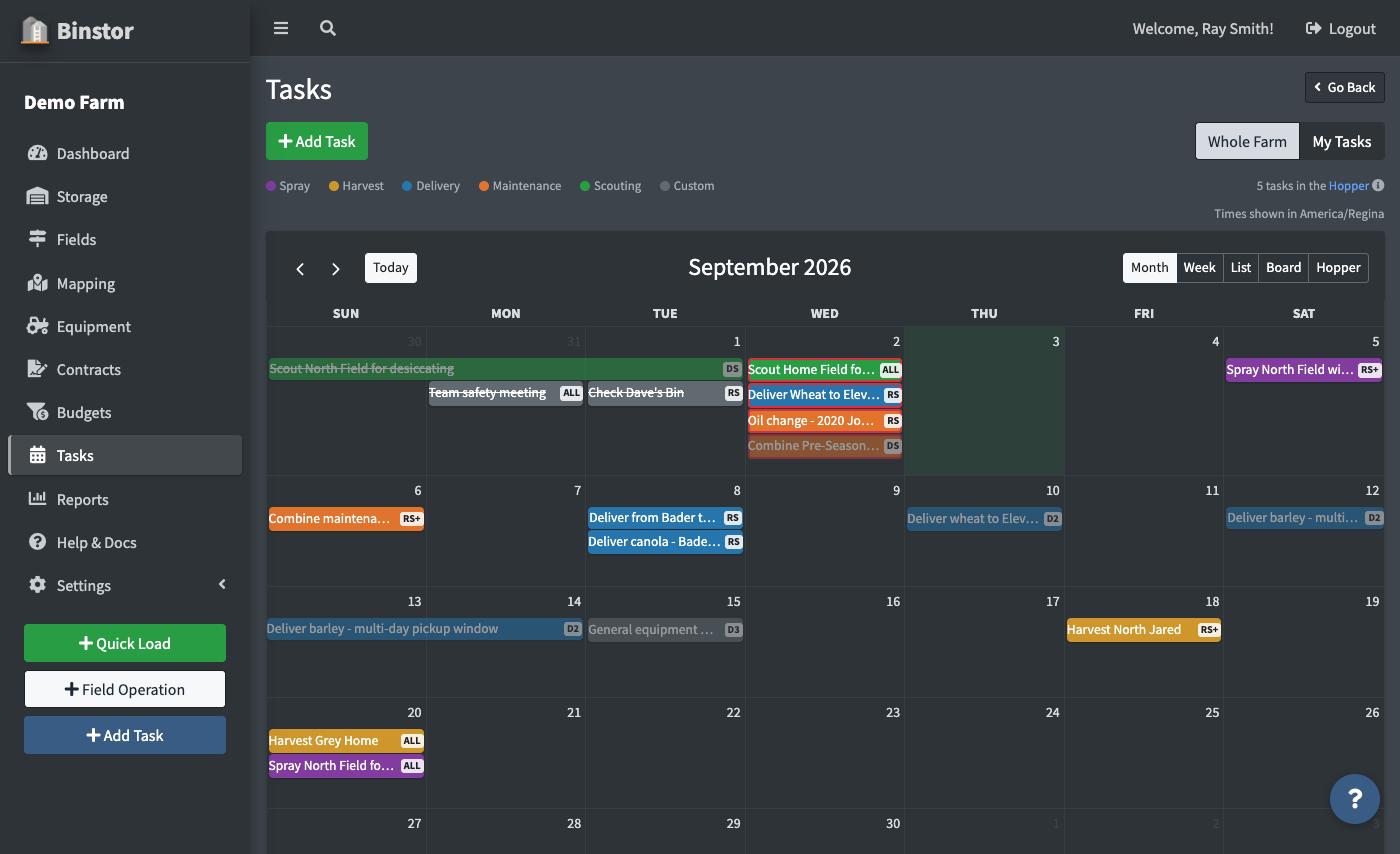
Save. The task now shows on the Calendar for everyone with access, color-coded by type.
Whole Farm vs. My Tasks
By default, anyone with Calendar access sees every task on the farm, not just their own, with tasks assigned to someone else shown dimmed so your own work stands out. Use the Whole Farm / My Tasks toggle at the top of the Calendar to switch to seeing only what's assigned to you.
Overdue tasks
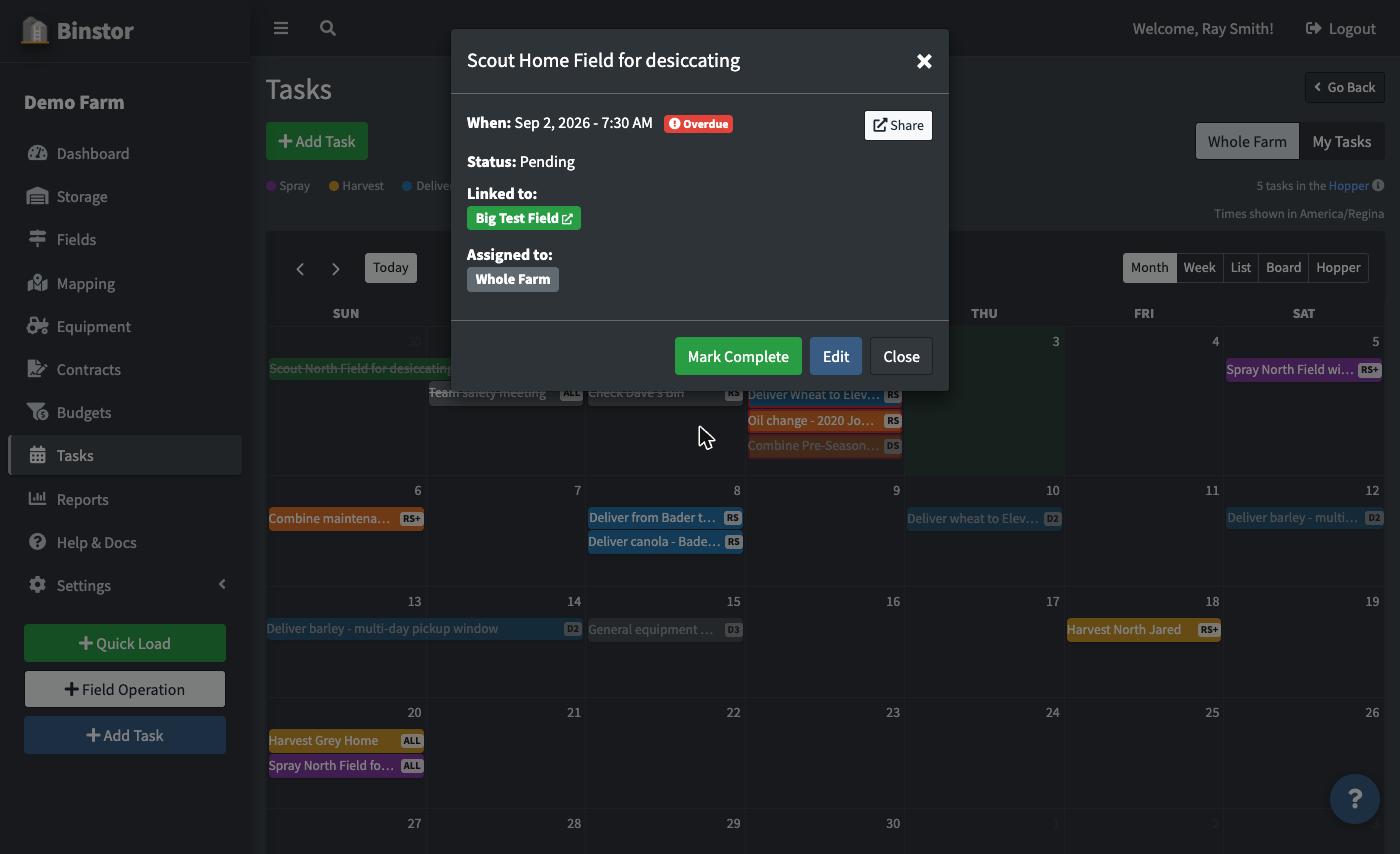
A pending task past its own due date (or end date, for multi-day tasks) is marked Overdue wherever it appears, and shows up in the Dashboard's "Upcoming Tasks" widget even once it's past due, so nothing quietly falls off your radar. Times are calculated using your farm's own timezone, set under Account Settings.
Other Views
Besides the Month/Week/List calendar, two other views are available from the same view switcher:
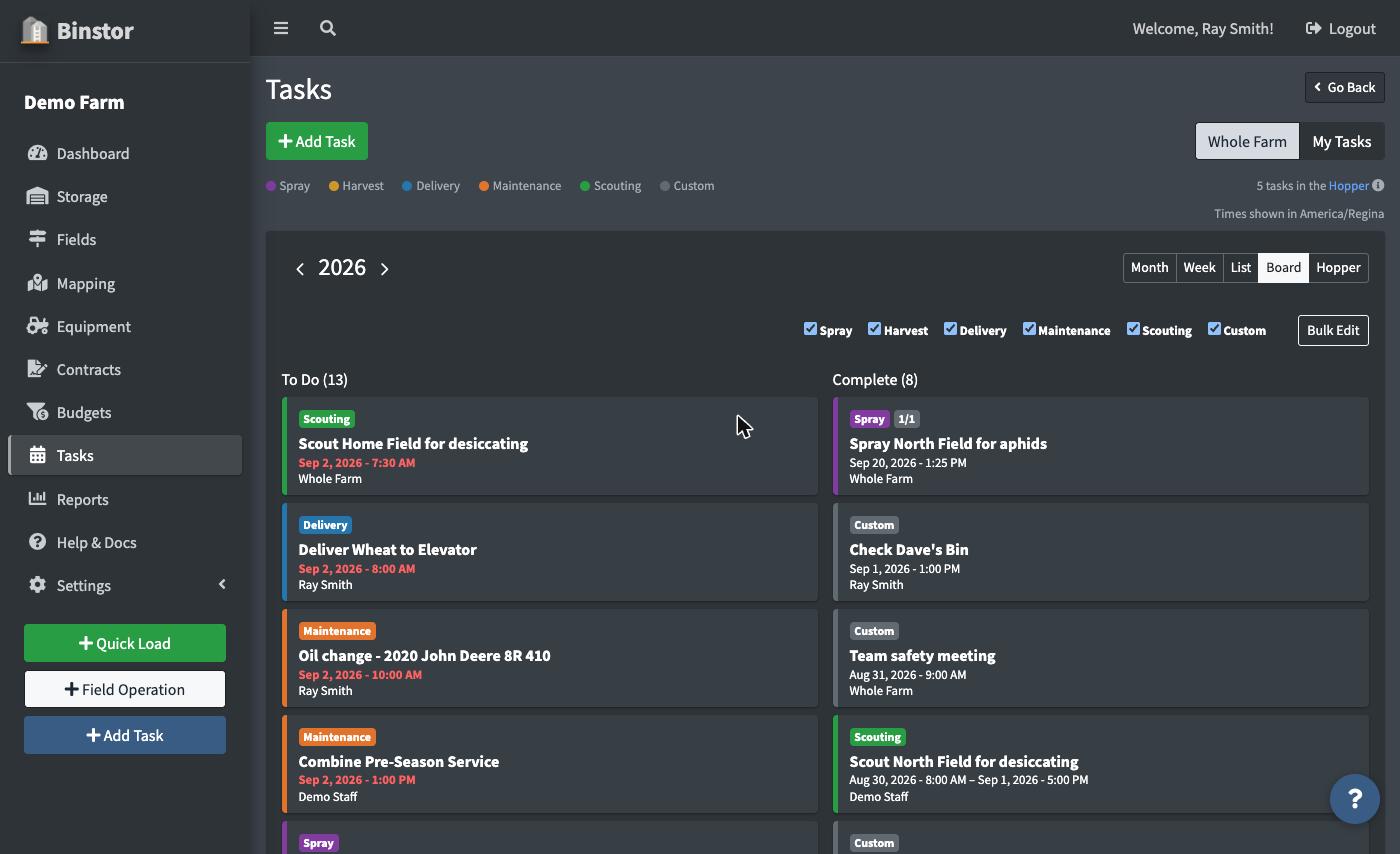
Board is a Kanban-style To Do / Complete board for the whole year, with checkboxes to filter by task type. On desktop, staff with management permission can also select multiple tasks and bulk complete, reassign, or delete them at once.
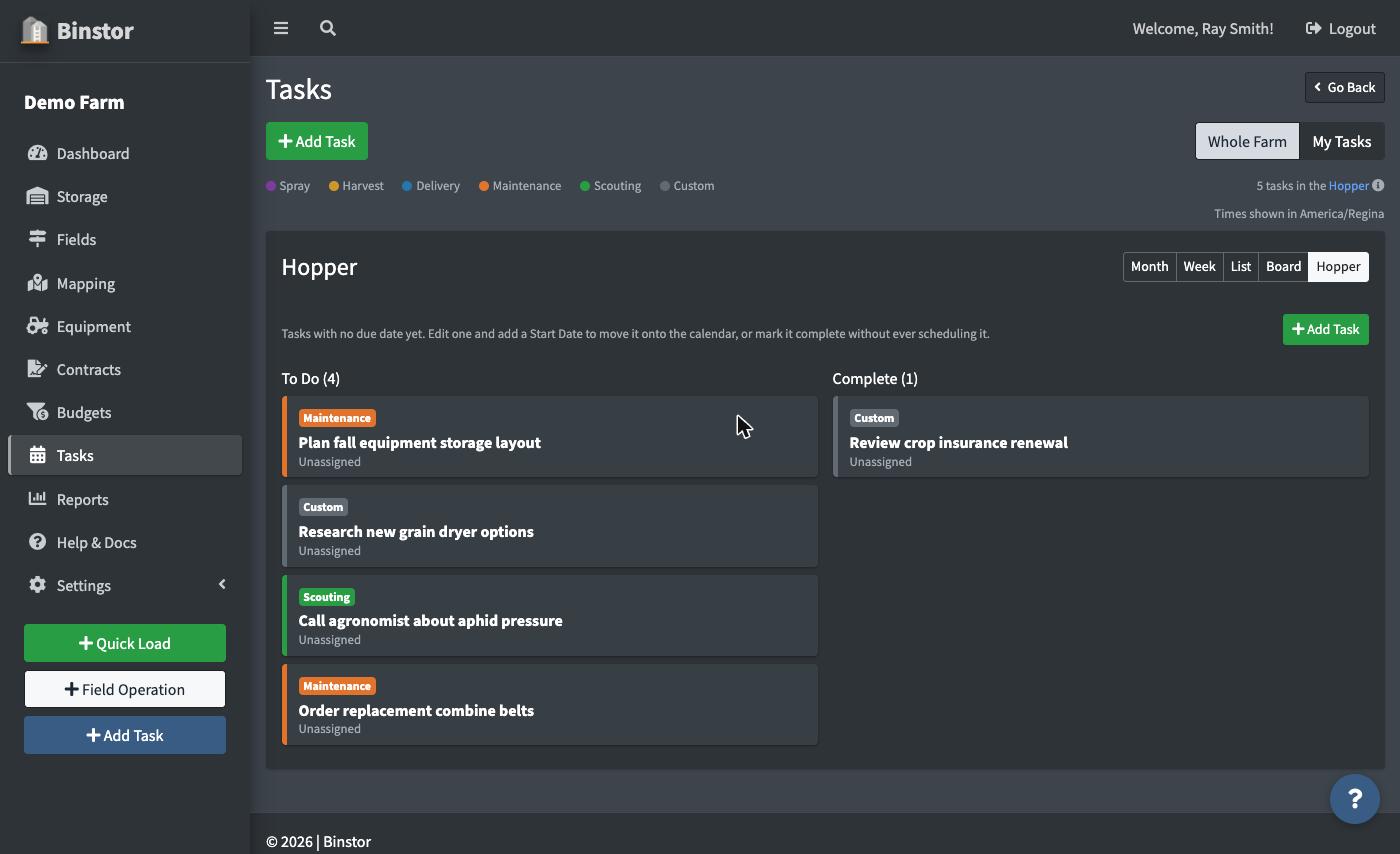
Hopper holds tasks you added with No date yet. Edit a Hopper task and add a Start Date to move it onto the calendar, or mark it complete without ever scheduling it. A muted "N tasks in the Hopper" notice appears near the top of the page whenever there's anything waiting there.
Completing a Task
Click a task to open it, then Mark Complete. Anyone assigned to a task can mark it complete even without full Calendar management permission, since you don't need edit access just to check off your own work.
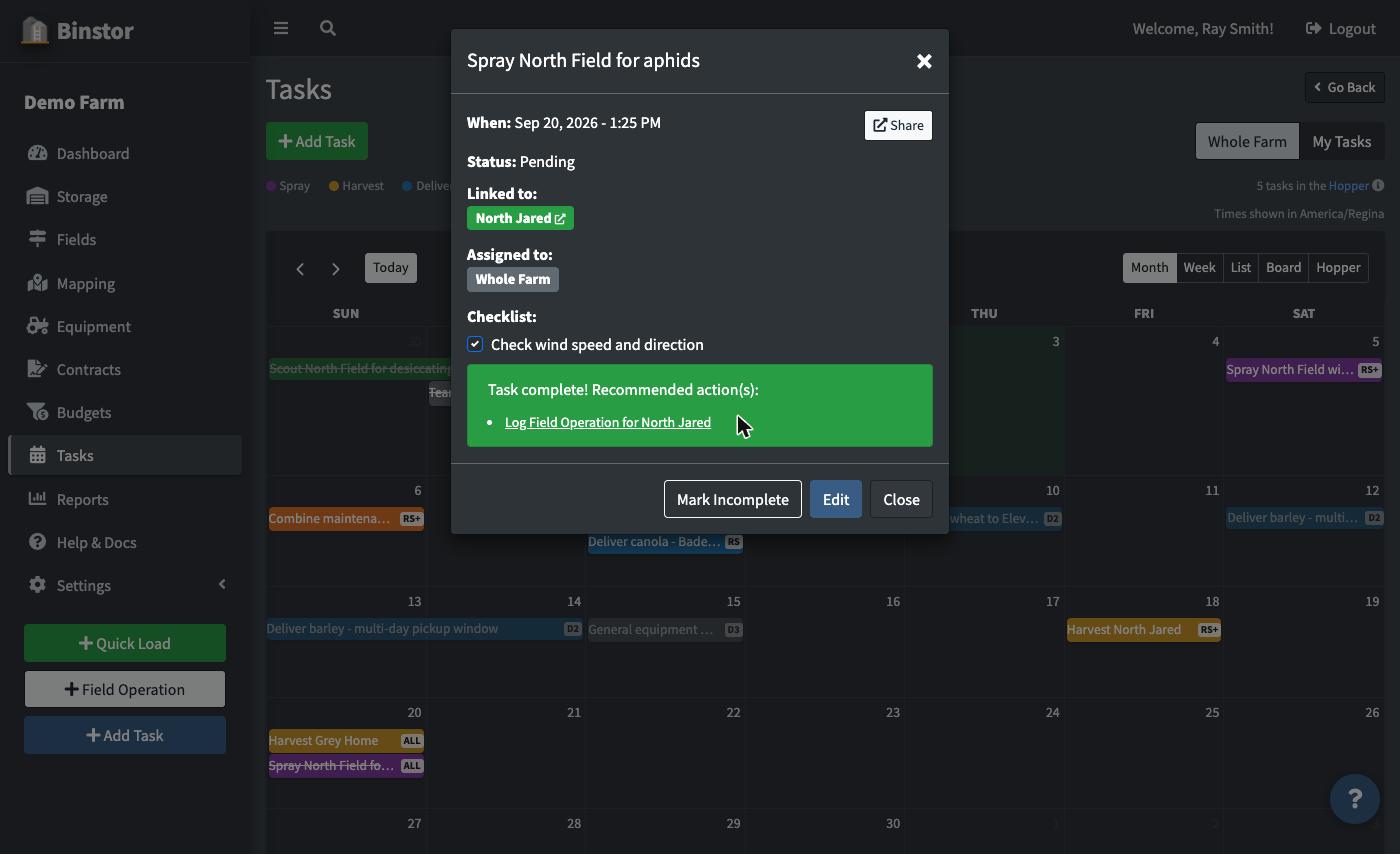
Completing certain tasks (for example, a Spray task linked to a Field, or a Maintenance task linked to a piece of Equipment) shows a Recommended action(s) prompt with a direct link to log the matching real-world record, so you're not stuck re-finding the right page afterward. This stays visible any time you reopen that task later too, not just right after completing it.
Sharing a task
Every task's quick-view has a Share button. On a device that supports it, this opens your phone or browser's native share sheet; otherwise it copies a direct link to the task so you can paste it into a text, email, or chat message yourself.
FAQ
Can staff see tasks assigned to other people?
Yes, by default. Anyone with Calendar access sees the whole farm's tasks, with their own visually distinguished. Staff without Calendar access can still see and complete the individual tasks they're personally assigned to. Assignment always grants access to that one task, even without the broader permission.
What happens if I assign a task to "Whole Farm" and add a new staff member later?
They're automatically included. Whole Farm tasks aren't a fixed list of names, they always mean "everyone currently on the farm."
What's the difference between the Hopper and just not setting a reminder?
A Hopper task has no date at all, so it never shows on the Calendar, Board, or in reminders until you actually schedule it. It's meant for things you know you need to do eventually but can't put a date on yet, not for dated tasks you simply don't want a reminder on.
Can I delete a task?
Yes, from the task's edit screen, if you have Calendar management permission.