How-To
Bin Temperature Monitoring connects an automated temperature-cable system to a specific bin, so its readings show up live in Binstor and you get an email if a bin crosses a temperature threshold you set.
Connect your device
Your cable system (or whoever installed it) needs an API key to push readings into Binstor. Please contact us if you have questions.
- Go to Staff, and find the Devices & Connected Apps section below your team list. (You'll need Manage Staff permission to see this.)
- Click Add New, give it a name you'll recognize (e.g. "Bin Monitor Cable System"), and set its permissions: for a temperature-monitoring device, that's just Access to view Storage and Access to manage Yards & Bins. Leave everything else off.
- Save it. A key is generated once, so copy it immediately, it can't be shown again. Give this key (and your bin's ID, shown in the URL of that bin's page) to whoever is configuring the device.
You don't need to set anything else up first. The first time your device sends a reading for a cable, Binstor creates that cable automatically.
View live readings
Once your device has sent its first reading, a Live Temperature card appears on that bin's page, showing each cable's sections from bottom to top (matching the physical cable), along with when the last reading came in. A Temperature History chart appears alongside it, with a 24-hour/7-day/30-day view selector. Each line is one cable section, named after the cable's own label (a bin with one cable just shows "Section 1", "Section 2" and so on). Each section has its own color, and if a bin has more than one cable, each cable uses a different line style (solid, dashed, dotted). The list of lines under the chart scrolls when there are many, and tapping a name shows or hides that line.
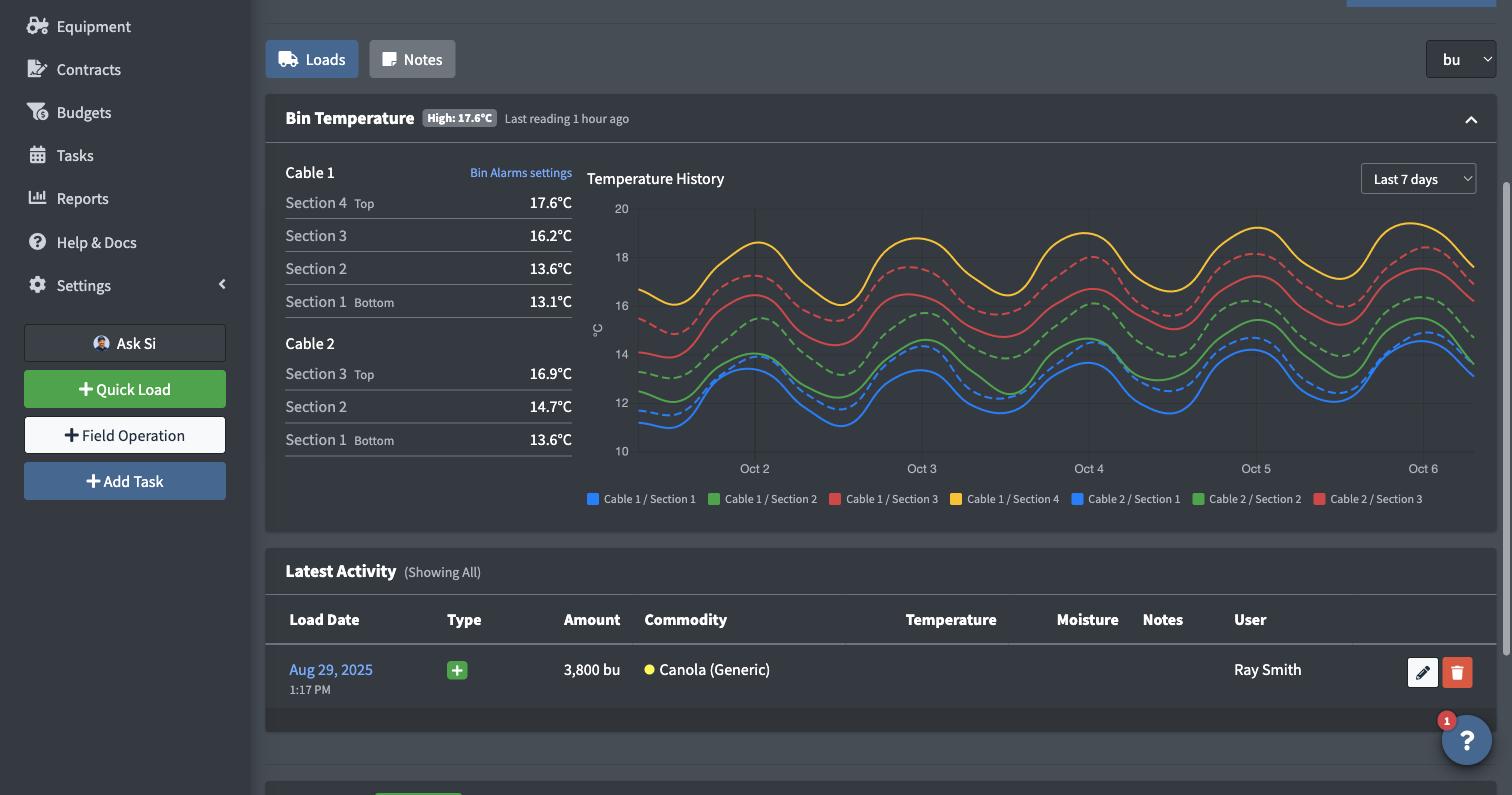
Nothing shows up here until your device has actually sent data, since an empty card would just be confusing before then.
See every bin at once
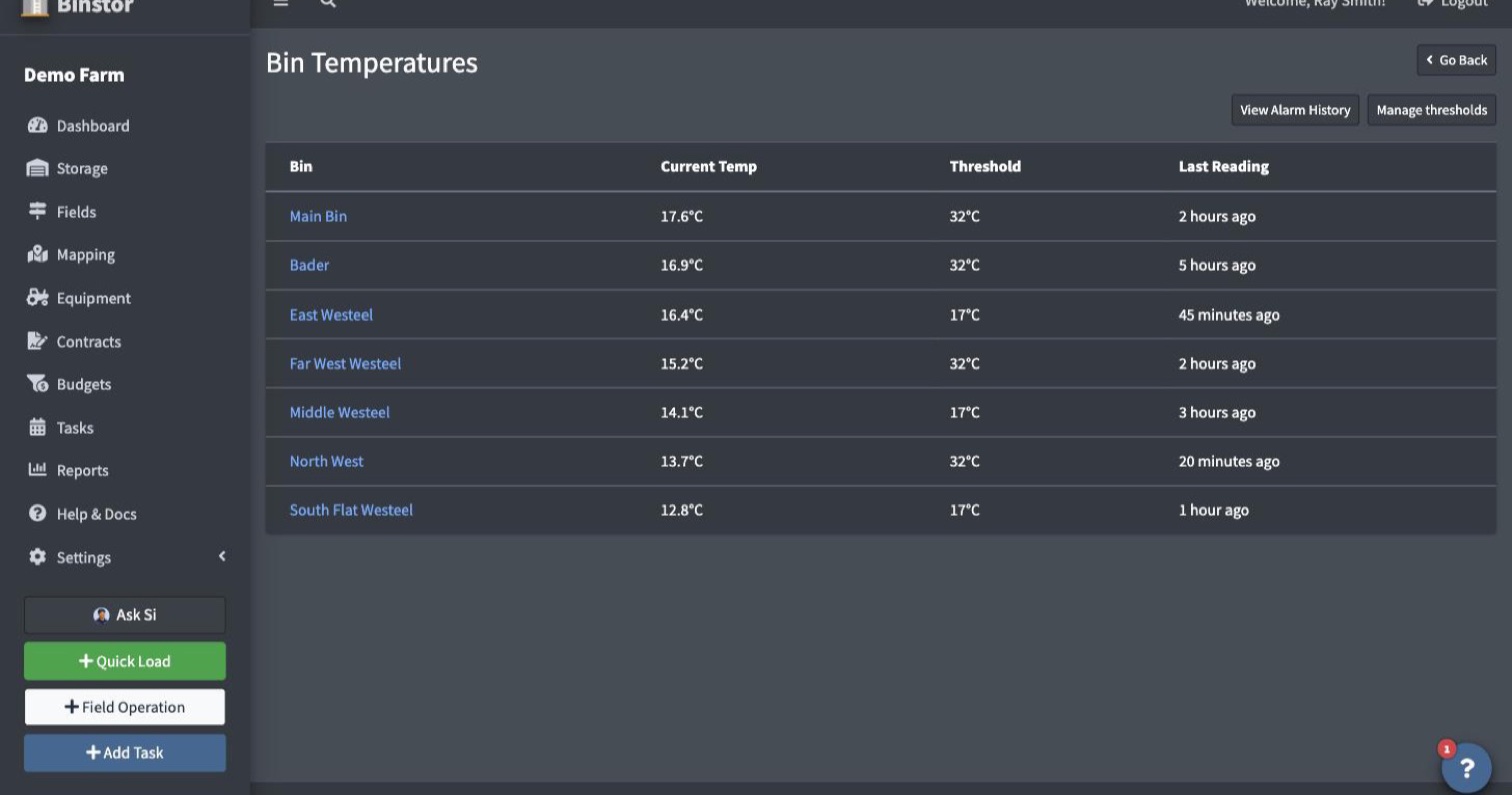
Once your farm has bin-temperature data, a Bin Temperatures card on your Dashboard summarizes every monitored bin, and links to a farm-wide overview page listing each bin's highest current reading (the hottest section on any cable), so you can spot a warm bin without opening them one by one. The info icon next to a bin's threshold shows where that threshold comes from: Bin, Commodity or Farm Default. Readings that have gone stale (your device hasn't reported in a while) are marked with a red icon.
Set up alarms
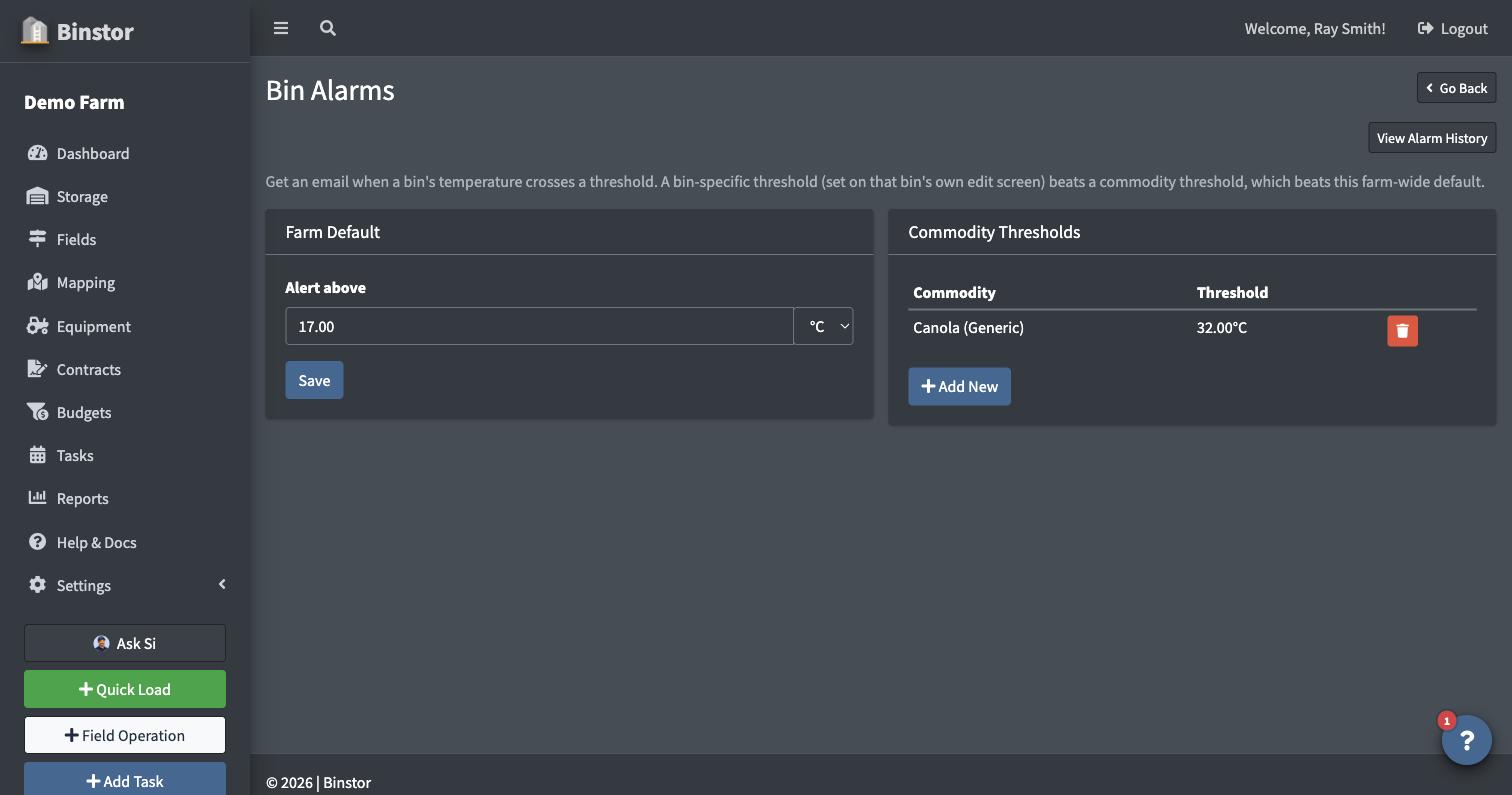
Once your farm has any bin-temperature data, a Bin Alarms link appears on the Live Temperature card, taking you to a settings page where you can set:
- A farm-wide default threshold, and/or
- A threshold per commodity (e.g. a lower threshold for canola than wheat).
You can also set a threshold for one specific bin on that bin's own Edit screen, which overrides both the commodity and farm defaults for that bin only. Leave it blank to go back to inheriting.
When a bin crosses its threshold, everyone with Storage access gets a one-time email (not a repeat every few minutes while it stays high). There's no separate "all clear" email when it drops back down. Check the bin's own page to confirm the temperature has resolved; no further alerts means it's staying under threshold.
Review alarm history
Click View Alarm History on the Alarms or overview pages to see past alarms across your farm: which bin, when it crossed its threshold, and whether an email went out. You can also ask Si, for example "Which bins alarmed this week?" (see Ask Si).
Set your preferred temperature unit (optional)
Under Account Settings, owners can set a farm-wide Default Temperature Unit (Celsius or Fahrenheit). This only controls how temperatures are displayed, it never affects whether your device can send data. If you never set it, Binstor picks it up automatically from your device's very first reading.
FAQ
Which temperature cables do you support?
We support almost every temperature cable that exists on the market today. The important piece is the cable reader itself, and its ability to send automatic updates to our API. Please contact us if you are interested in this feature and want to implement it on your operation.
Do I need to create the cable/bin setup in Binstor before my device sends anything?
No. The device just needs the bin's ID and its own API key; the first reading it sends creates everything else automatically.
Can I turn off Bin Alarm emails just for myself?
Yes, use the Bin Alarm Emails switch on your own Account Settings page, once your farm has any bin-temperature data. It only affects your own emails, not anyone else on the farm.
What if I need to disconnect a device?
Go to Staff > Devices & Connected Apps, open the device, and turn off Active. This immediately revokes every key issued to it.
Does this replace manually logging a Load's temperature?
No, they're separate. The Loads temperature field is still there for a one-off number entered by hand; Bin Temperature Monitoring is for an automated cable feed reporting continuously.