How-To
-
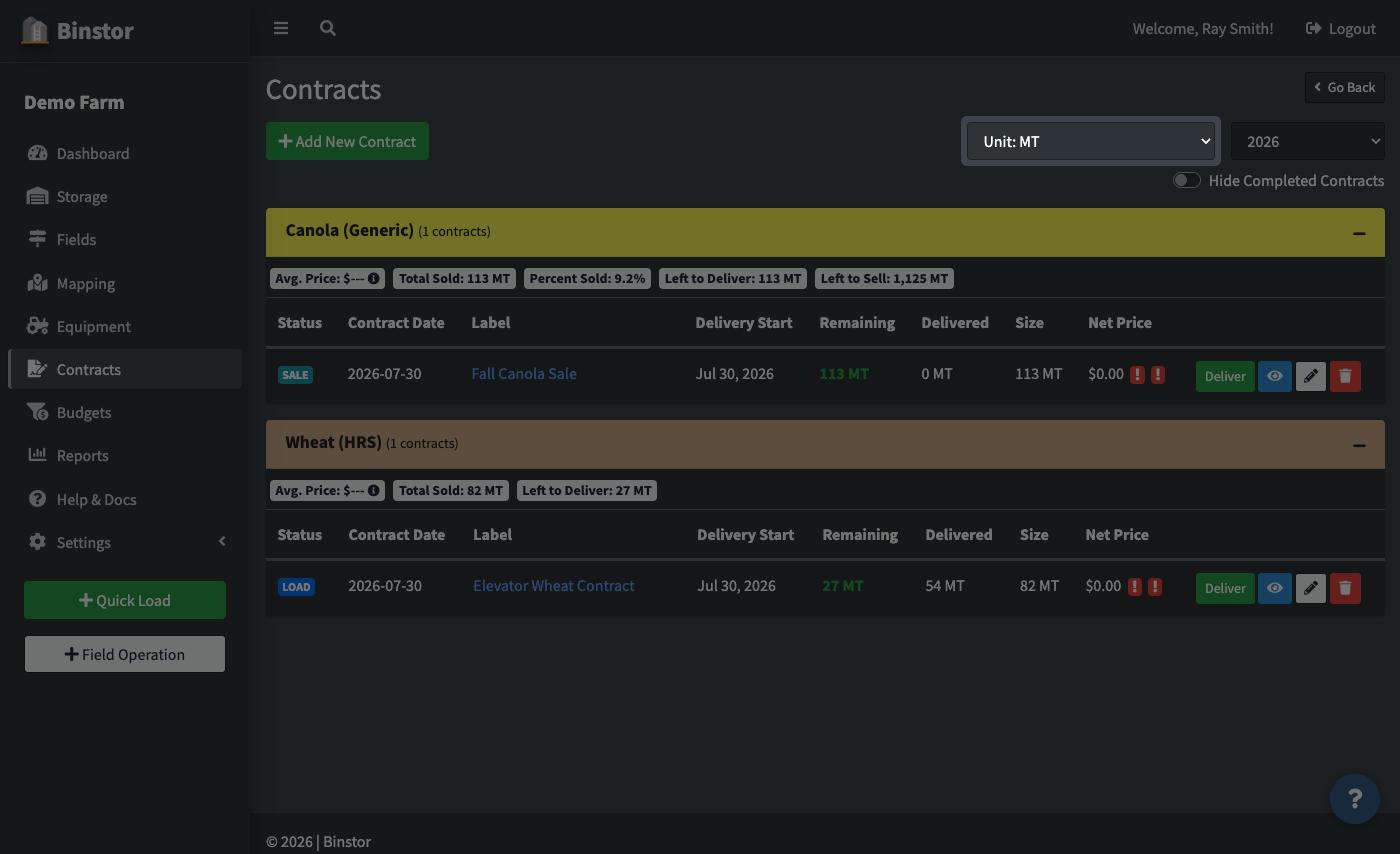
Go to Contracts and click Add your first Contract (or Add New Contract once you have others).
-
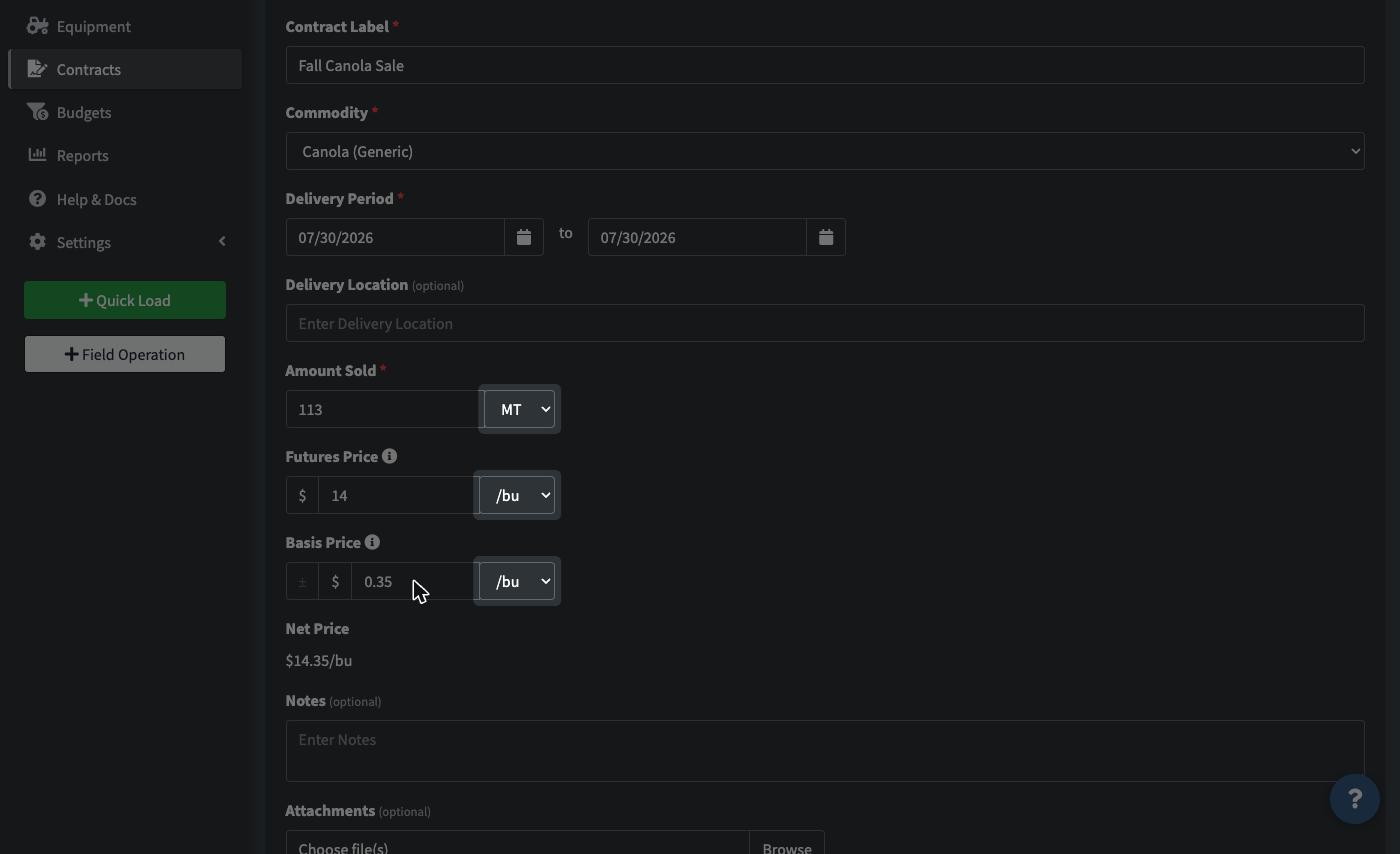
Enter the commodity, quantity, price, and buyer/delivery details for the crop year you're working in.
-
Save.
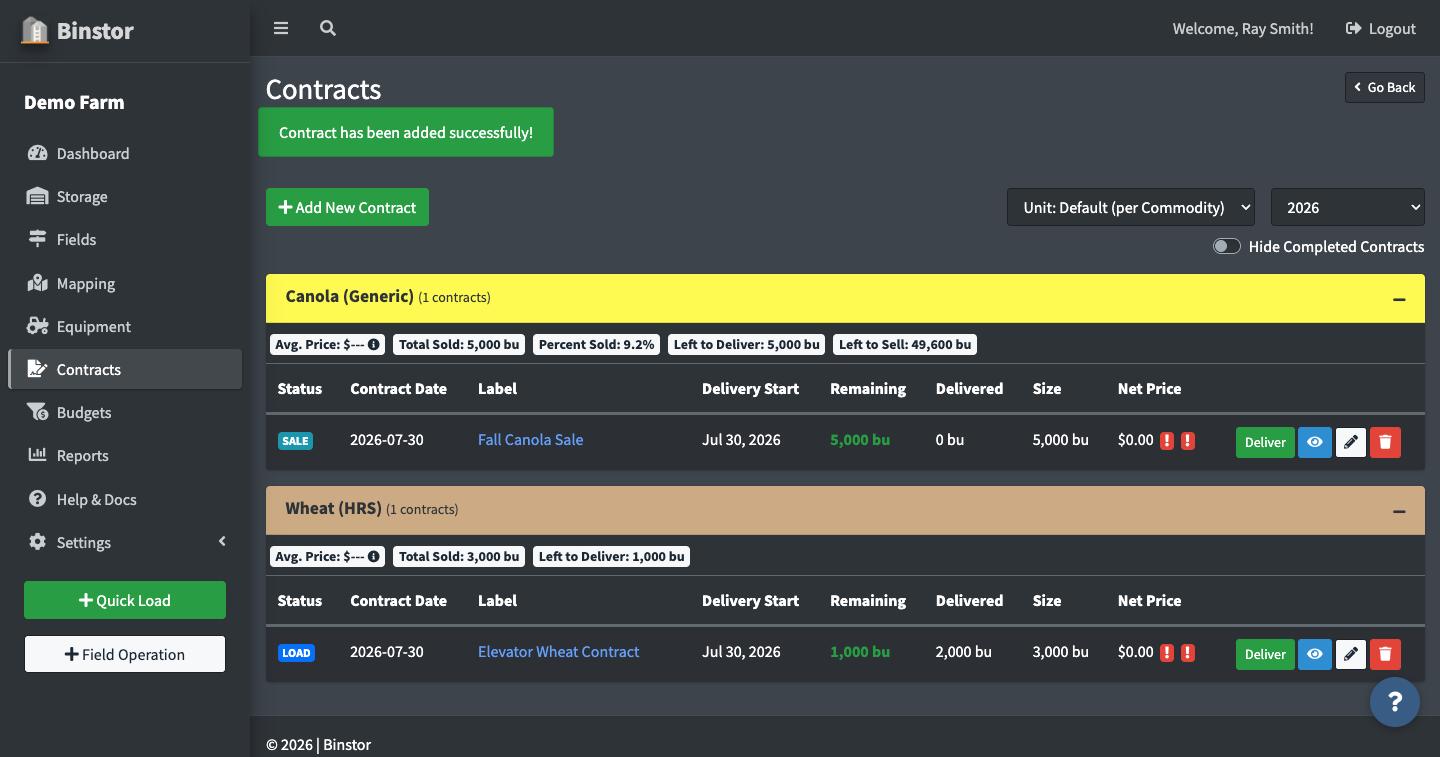
Delivering against a Contract. Once you've loaded grain into a Bin, you can deliver it toward an open Contract instead of tracking the two separately. See Delivering to a Contract for the full walkthrough, including Manual Load for grain that didn't go through Binstor's Storage tracking.
Attachments. You can attach files (like a signed contract PDF) directly to a Contract record.
FAQ
Can I delete a Contract?
Yes, using the trash icon on the Contracts list, but deleting also removes it (and its delivery history) from view everywhere in Binstor, so it's usually safer to leave a fulfilled/cancelled contract in place rather than delete it, unless it was created in error.
Why can't I create or edit Contracts?
You need the Manage Contracts permission, separate from Deliver Loads, so a staff account can be allowed to deliver against existing contracts without being able to create or edit contracts themselves.
A Contract shows as Complete. Can I still add a delivery to it?
The Deliver button disappears from the main Contracts list once nothing remains, but adding a delivery directly from that Contract's own detail page is still possible. If you need to stop further deliveries on a finished Contract entirely, that's a reason to double-check the delivered total rather than relying on the list view alone.