How-To
Devices & Connected Apps lets you connect outside systems to your farm, like a bin temperature cable system or another app that uses the Binstor API. Each one gets its own name, its own permissions, and its own API key, so it can only do what you allow.
Add a device or connected app
-
Go to Staff and find Devices & Connected Apps below your team list. (You need Manage Staff permission.)
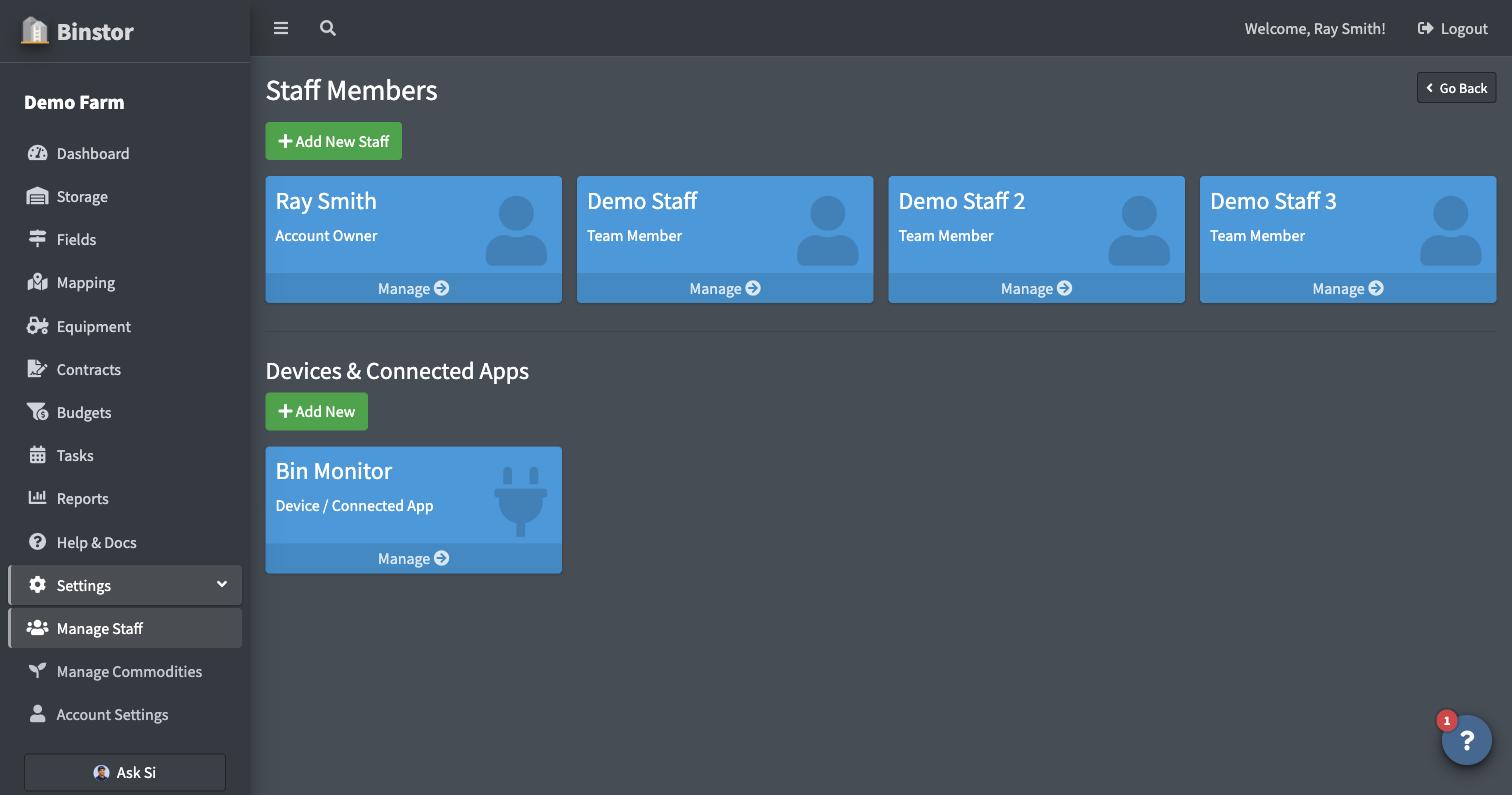
-
Click Add New, name it (e.g. "Bin Monitor Cable System"), and choose its permissions. Give it only what it needs. A temperature-cable device just needs Access to view Storage and Access to manage Yards & Bins.
-
Save. Your API key is shown once, so copy it right away. It can't be shown again.
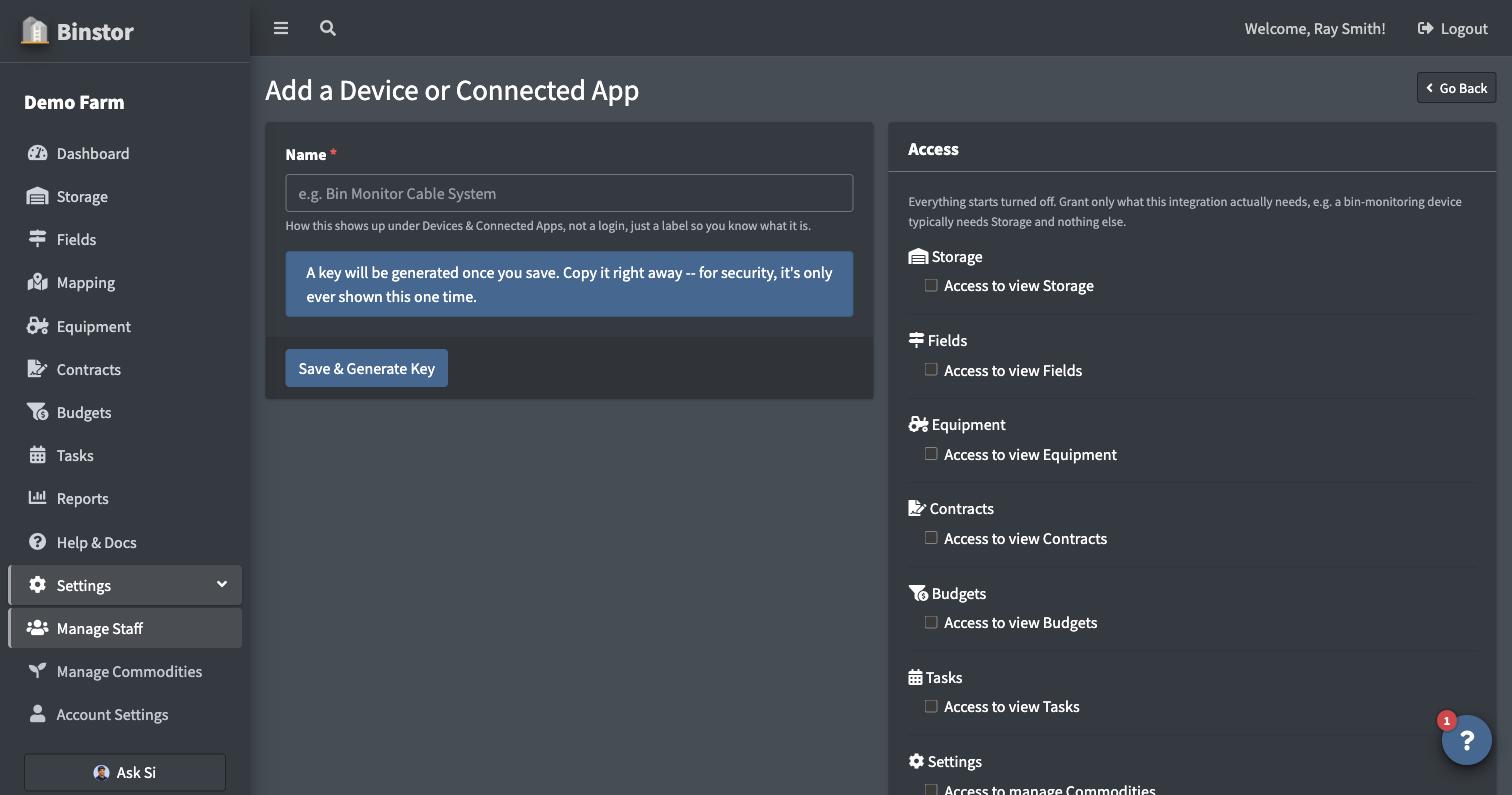
Issue more keys or revoke a key
Open the device or app from the list to see its keys. You can issue an additional key (useful when rotating keys) or revoke one at any time. Revoking takes effect immediately.
Deactivate a device
Open it and turn off Active to immediately revoke every key it has.
API keys for a staff member
You can also give a person their own API key, for example a team member who builds reports or tools against your farm's data. Unlike a device, the key acts as that person, with exactly the same access they have in Binstor.
- Go to Settings > Manage Staff and open the staff member.
- Scroll to the API Keys section. It lists their keys, when each was last used, and whether it's still active.
- Click Generate API Key, enter a label (e.g. "Laptop"), and click Create Key.
- Copy the key right away. It's shown once and can't be shown again.
To revoke a key, click the trash icon beside it. It stops working immediately. A key always uses the person's current permissions, so changing them later changes what the key can do. Deactivating the person stops their keys from working. Keys belong to one farm, so someone on several farms needs a separate key for each.
You need Manage Staff permission to issue keys, and you can only issue a key for someone whose access is no wider than your own. Only the farm owner can issue a key for the owner's own login.
Your own API keys
Under Account Settings you'll see API Keys, keys tied to your own login and permissions. You can always revoke your own keys there. Issuing new ones requires Manage Staff permission.
FAQ
I lost my key.
Keys can't be shown again. Issue a new one and revoke the old one.
What can a key access?
Only what its device or login permissions allow, the same as in the app. A staff member's key can never do more than that person can do when they're logged in.
What's the difference between a device key and a staff key?
A device or connected app has its own name and permissions, separate from any person, so it's the right choice for a cable system or another app. A staff key belongs to a person and acts as them. Use it when that person needs API access of their own.
Where do developers find the API documentation?
The API is currently available on request. Contact us if you'd like access.
Do I need this for Bin Temperature Monitoring?
Yes, your cable system needs a key. See Bin Temperature Monitoring.