How-To
Reports brings together every export/summary view in one place, grouped by area: Storage, Fields, Contracts, Budgets, and Equipment. You'll only see the categories you have view access to.
View a Report
-
Go to Reports and pick a report card, then click View Report.

-
Set the filters shown for that report (year, date range, Yard/Field/ Commodity, etc.). Reports involving grain quantities also have a Unit filter: Default shows each commodity in its own configured unit, or pick bu/MT/ST/kg/cwt/lb to force the whole report to one unit for easier comparison.
-
Click Generate Report (reports don't load automatically, so if a report page looks empty, check that you've clicked Generate after setting your filters).
-
From the results, use Print / Save PDF or Download CSV.
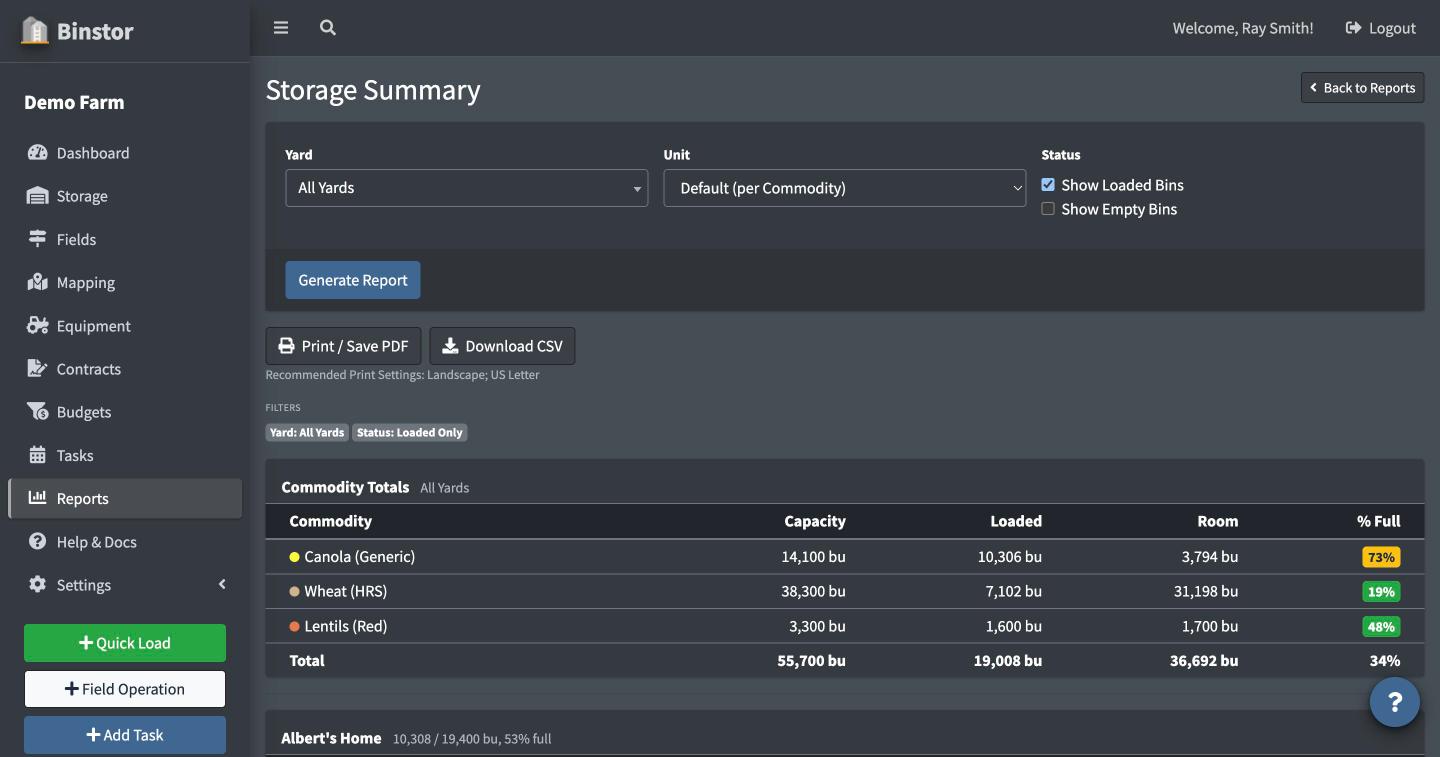
Reports available
- Storage: Storage Summary, Commodity Location, Load History, Grain Monitor (temperature/moisture)
- Fields: Field Summary, Field Operations, Crop History, Production vs Storage Reconciliation (requires both Fields and Storage view access)
- Contracts: Contract Status, Delivery History
- Budgets: Profitability, Fixed Costs, Crop Plan
- Equipment: Maintenance History, Equipment Inventory, Parts Inventory
- Si Activity: every change requested through Si across your farm (who asked, what it did, when, and whether it went through). Requires Manage Staff permission. See Ask Si.
FAQ
I clicked into a report and it's blank.
Set your filters and click Generate Report; nothing loads until you do.
Why don't I see certain report categories?
Each category requires the matching "view" permission (Storage, Fields, Contracts, Budgets, or Equipment). A staff account without access to an area won't see its reports either. Si Activity requires Manage Staff.
I changed the year on a Profitability or Fixed Costs report. Did that affect my Budgets pages too?
Yes. Budgets reports use the same crop-year selection as the rest of the app, so changing it on a report also changes what Budgets shows if you navigate there next.