How-To
Add a Load
-
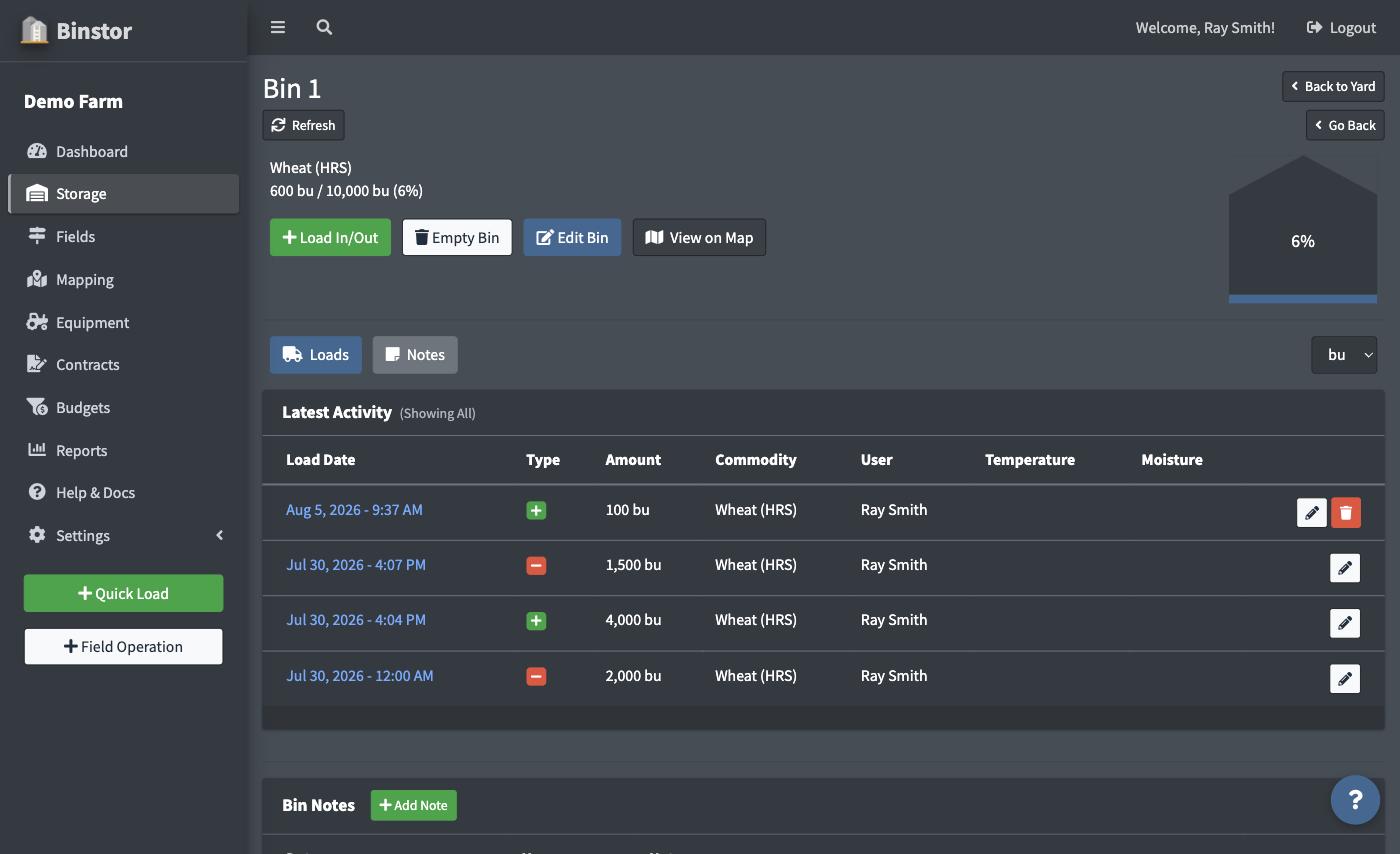
From a Bin, click Load In/Out.
-
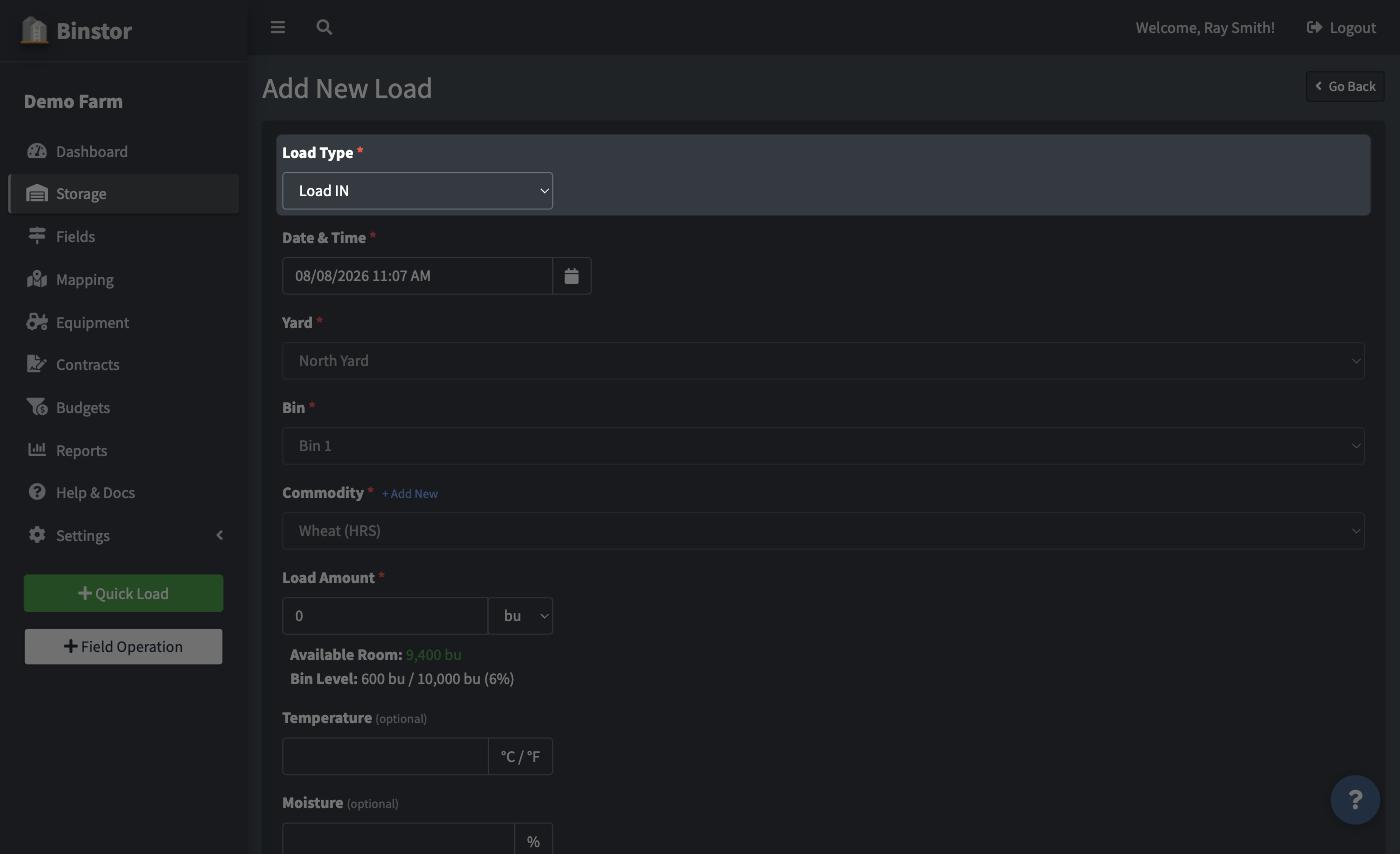
Choose Load IN (grain coming into the bin) or Load OUT (grain leaving).
-
Pick the commodity, enter the Load Amount, and optionally temperature, moisture, and notes. Load Amount has its own unit dropdown (bu, MT, ST, kg, cwt, or lb). It starts out matching the bin's effective unit (its own override, or its commodity's default) but can be switched just for this entry without changing anything saved.
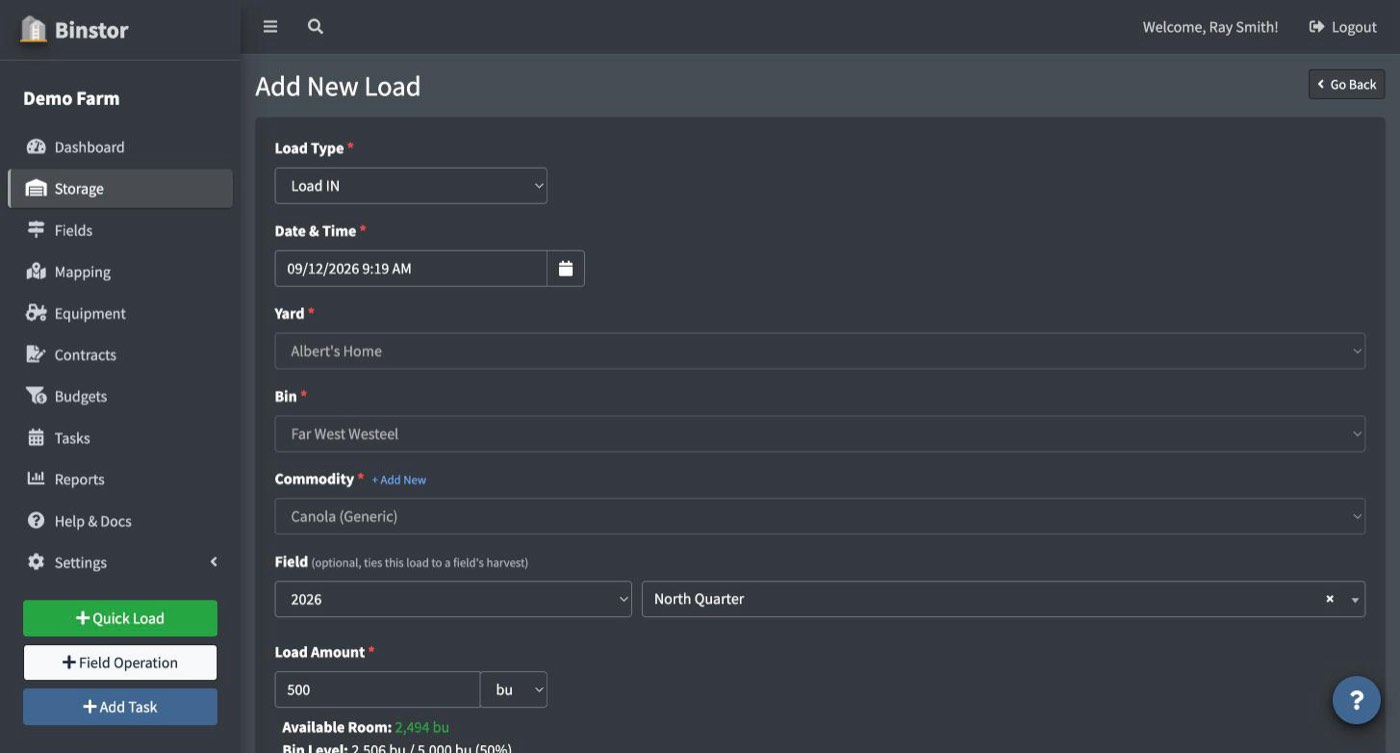
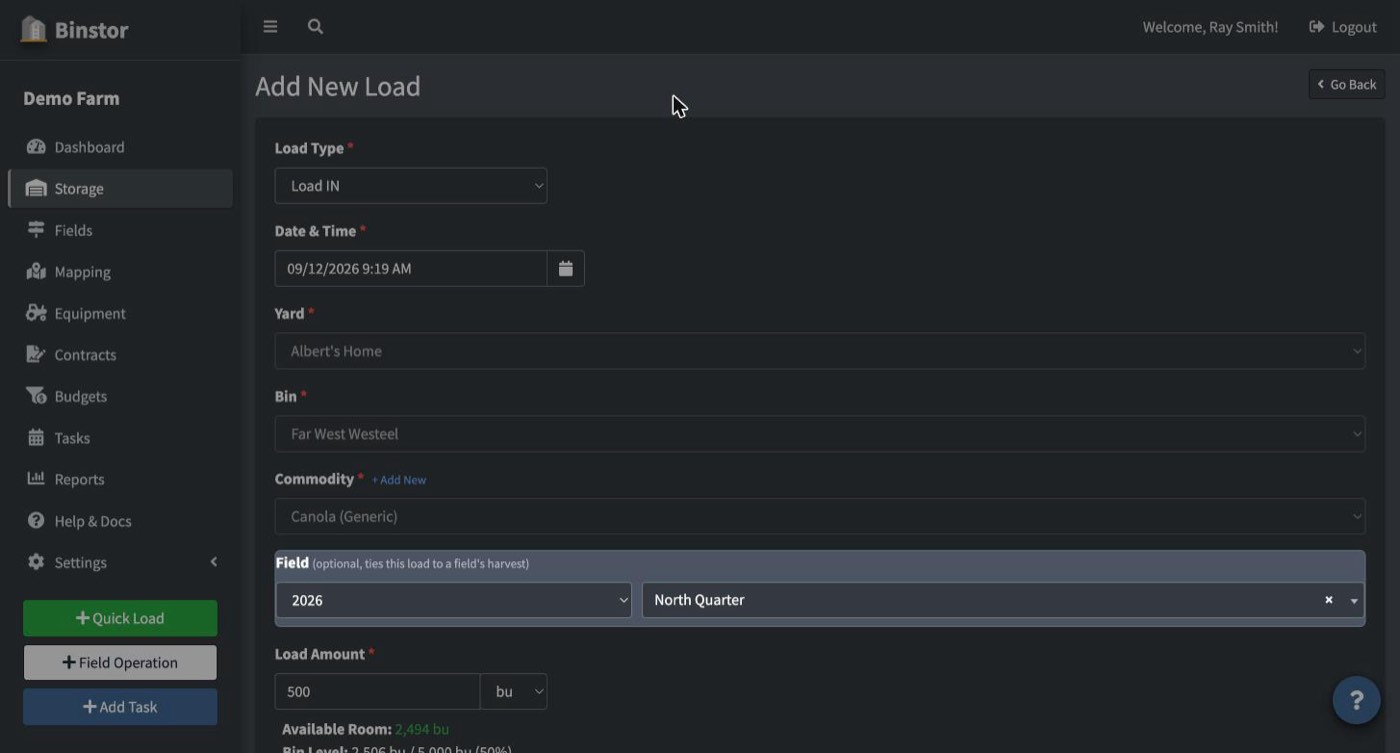
On a Load IN, an optional Field dropdown also appears once a commodity is picked, letting you tie this load to whichever of your Fields grew that commodity that year. It's entirely optional, but tagging it is what lets the Production vs Storage Reconciliation report match your harvest back to what actually made it into storage. Only Fields growing the selected commodity in the selected crop year show up in the list.
-
Save. The bin's current level updates immediately.
Load OUT has three modes, chosen with radio buttons once you select Load OUT:
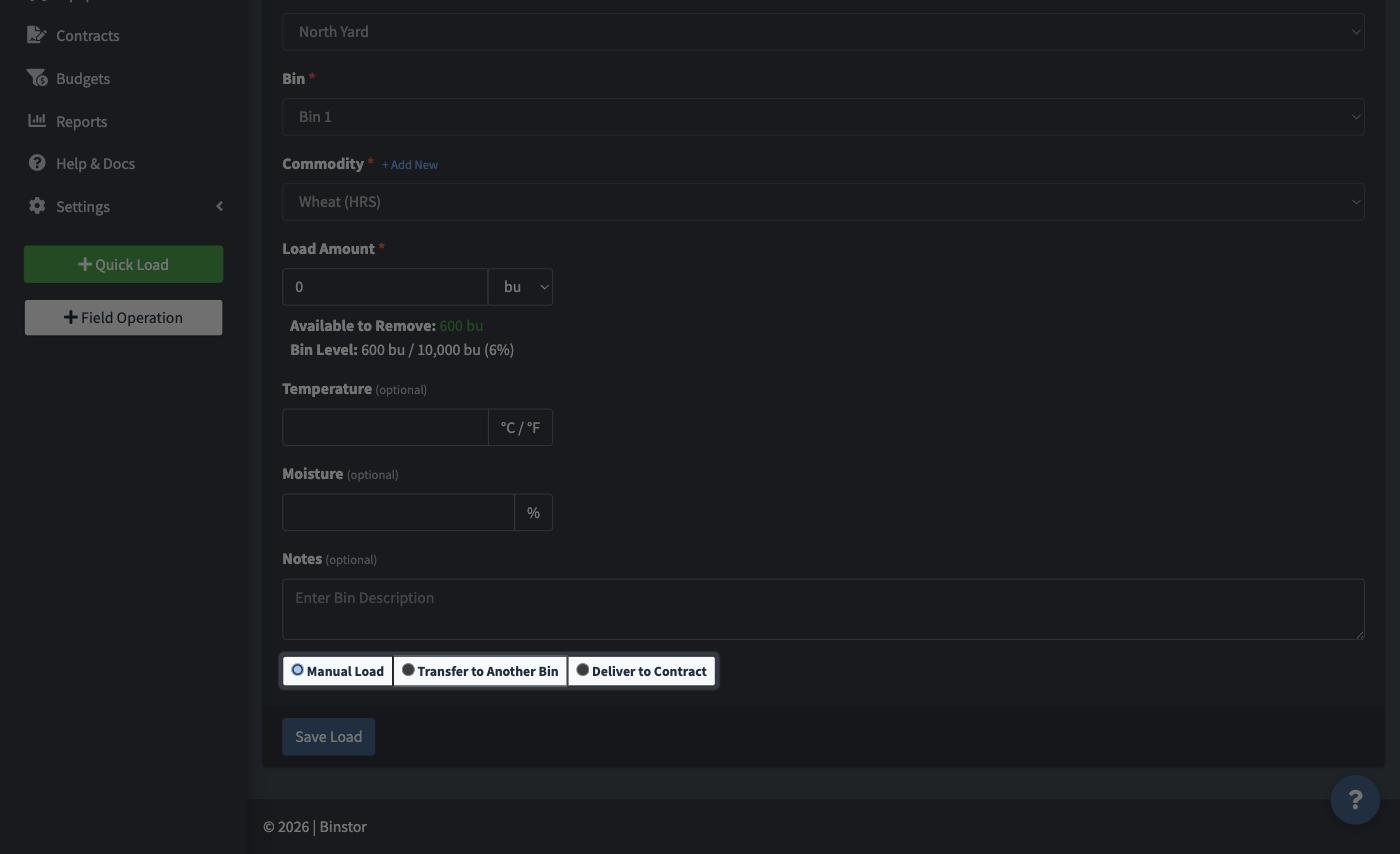
- Manual Load: the default. A straightforward outbound load, no destination tracking beyond the bin itself.
- Transfer to Another Bin: moves the grain into a different bin you own, in one step. See Transferring Loads Between Bins.
- Deliver to Contract: applies the outbound load against one of your open Contracts. Only shown if you have the View Contracts and Deliver Loads permissions. See Delivering to a Contract.
Taking out more than the bin holds
A bin can never go below empty. If a Load OUT is bigger than what's in the bin, Binstor asks you to confirm, then records only what's left so the bin ends up exactly empty. The same applies when editing a load.
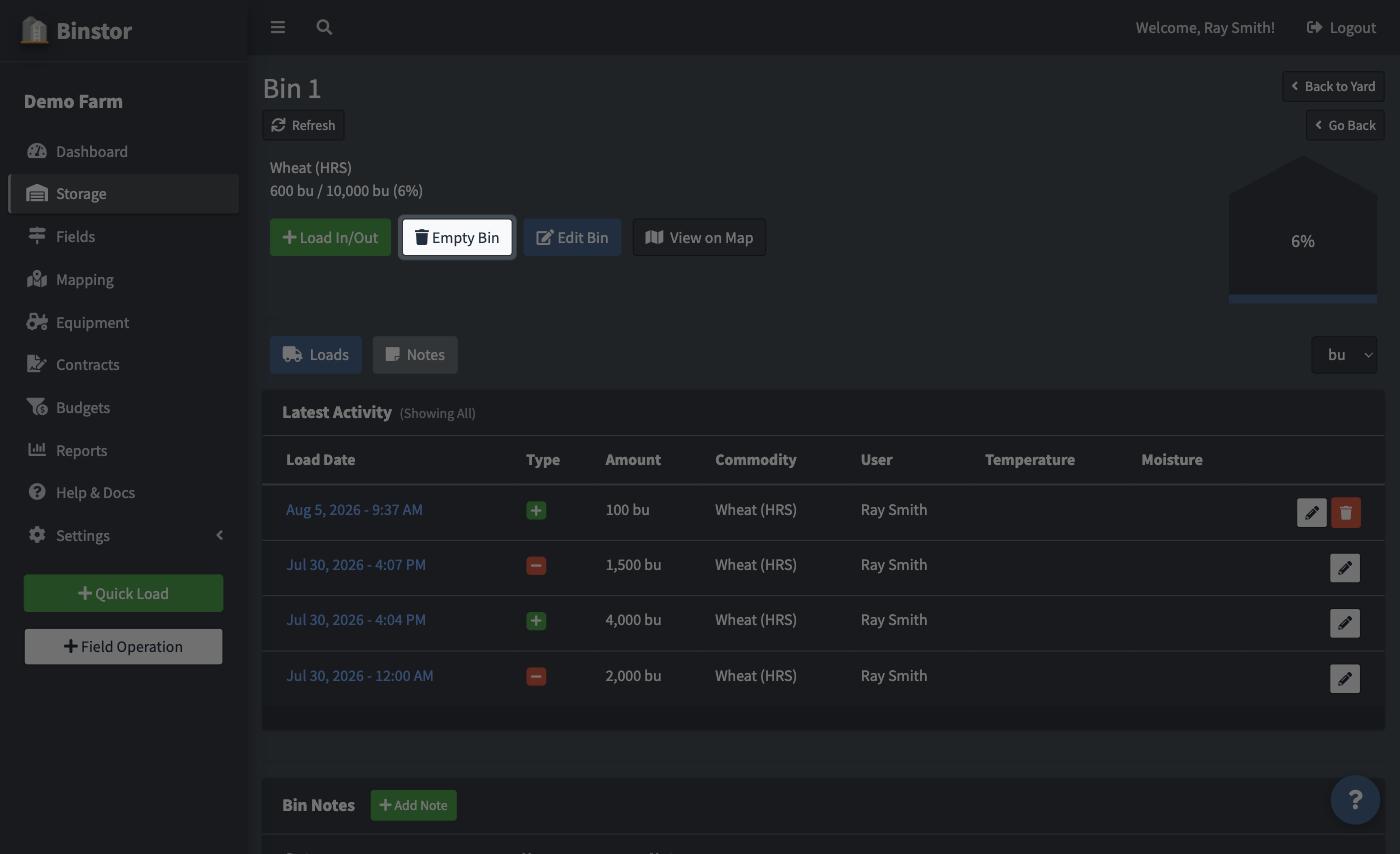
Emptying a bin
Use Empty Bin on a Bin's page instead of manually calculating an "out" load equal to whatever is currently in the bin: it does the math for you.
FAQ
Why don't I see "Deliver to Contract" as an option?
It needs the View Contracts and Deliver Loads permissions, which are separate from general Manage Loads/Manage Yards & Bins access. A staff account can be allowed to deliver against contracts without being able to do anything else with loads, or vice versa.
Why is the Field dropdown empty, or missing entirely?
It only appears on Load IN, and only lists Fields that have that exact commodity assigned in Crop History for the crop year selected in the dropdown next to it. Change the crop year there if the Field you're looking for grew something else this year, or pick a different commodity above if that's actually what's growing there instead.
Can I edit or delete a load after saving it?
Yes, from the Bin's load history, and the bin's current level recalculates automatically. Loads from before the bin last switched to a different commodity are locked (shown with a lock icon instead of the pencil), since changing them would throw off the current commodity's totals. Deleting is limited to the most recent load on that bin; delete the newest load first if you need to work your way back further. If the load is part of a Load Transfer or a Contract delivery, editing or deleting it also updates or deletes the linked record, and Binstor tells you before it does.
What does the red "Apply Fix" banner on a Bin mean?
It shows when a bin's loads add up to less than zero, which can happen with older records. Apply Fix adds a correcting Load IN that brings the bin back to exactly empty.
Why can't I add a Load?
You need the Manage Loads permission.