How-To
Add a Field
-
Go to Fields and click Add New Field.

-
Give it a name and acreage.

-
Save. You can assign a commodity/crop to it for the current year right away, or add that later.

Crop history vs. current-year crop
A Field's crop assignment is tracked per year. Switching the year selector shows what was planted in that field in prior seasons, separate from what you've logged as harvested through Field Operations for the current year. These are two different data sources (seeded acres vs. harvested-to-date), so they won't always match mid-season and that's expected.
Adding more than one crop to a Field
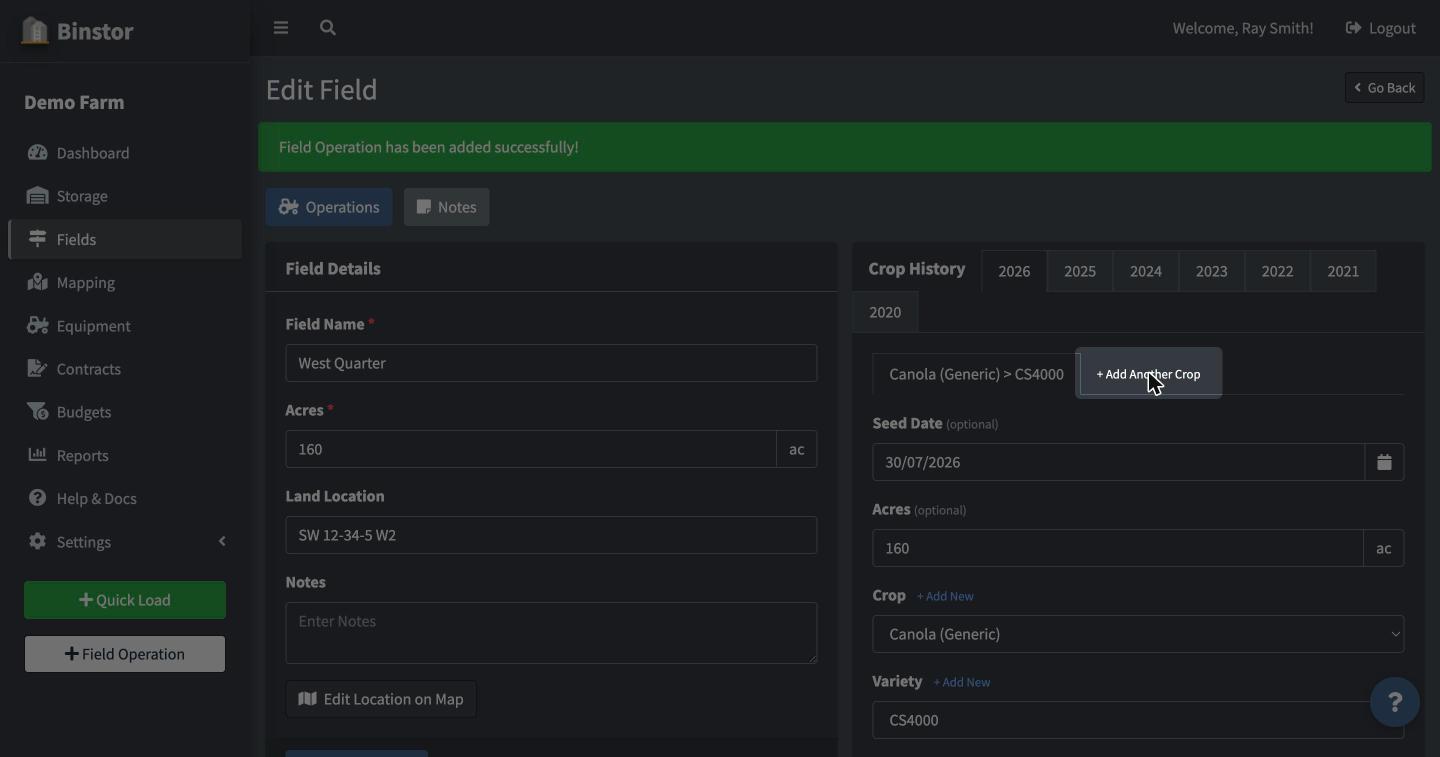
A Field isn't limited to a single crop per year. On the Field's Edit page, use Add Another Crop to record a second (or third) commodity/variety against the same field and year, useful for split fields or double-cropping. Each crop entry can be removed individually later without affecting the others.
Production vs Storage
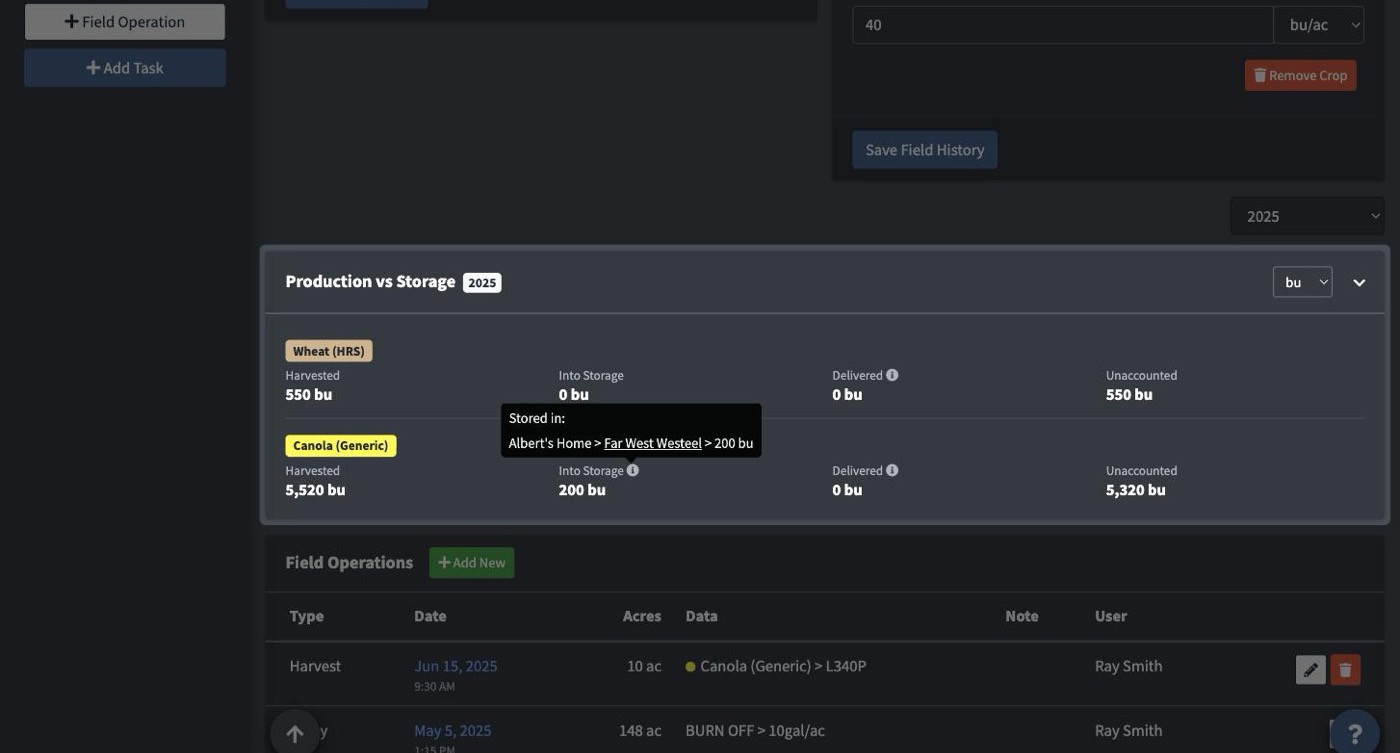
A Field with real activity for the year (a tagged Load or Delivery, or harvest data logged through Field Operations) shows a Production vs Storage card on its Edit page, one row per commodity: Harvested, Into Storage, Delivered, and Unaccounted. Unaccounted is simply Harvested minus what's been tracked into storage or delivered, so it's expected to show a large number until Loads and Deliveries for that Field actually get tagged; it isn't telling you grain is missing. See Adding a Load (In & Out) and Delivering to a Contract for how tagging works, or run the Production vs Storage Reconciliation report to see every Field at once.
Hover or tap the info icon beside Into Storage to see which Bins that grain went into, one line per Bin in the form Yard > Bin > Amount. Click a Bin's name to open it.
FAQ
Why can't I add or edit a Field?
You need the Manage Field Details permission. A staff account might have view-only access.
Can a staff member only see some Fields?
Yes, a farm owner can restrict a staff account to specific Fields. Fields outside that list won't appear anywhere for that login.